Reservation Management
Create, confirm, manage, and cancel vehicle reservations
Overview
The Reservation Management module captures confirmed or pending vehicle bookings. A reservation locks in a vehicle category (or specific vehicle), rental dates, pickup/return locations, and pricing for a customer. Reservations flow through controlled statuses from creation to either contract conversion, cancellation, or no-show.
Reservation List
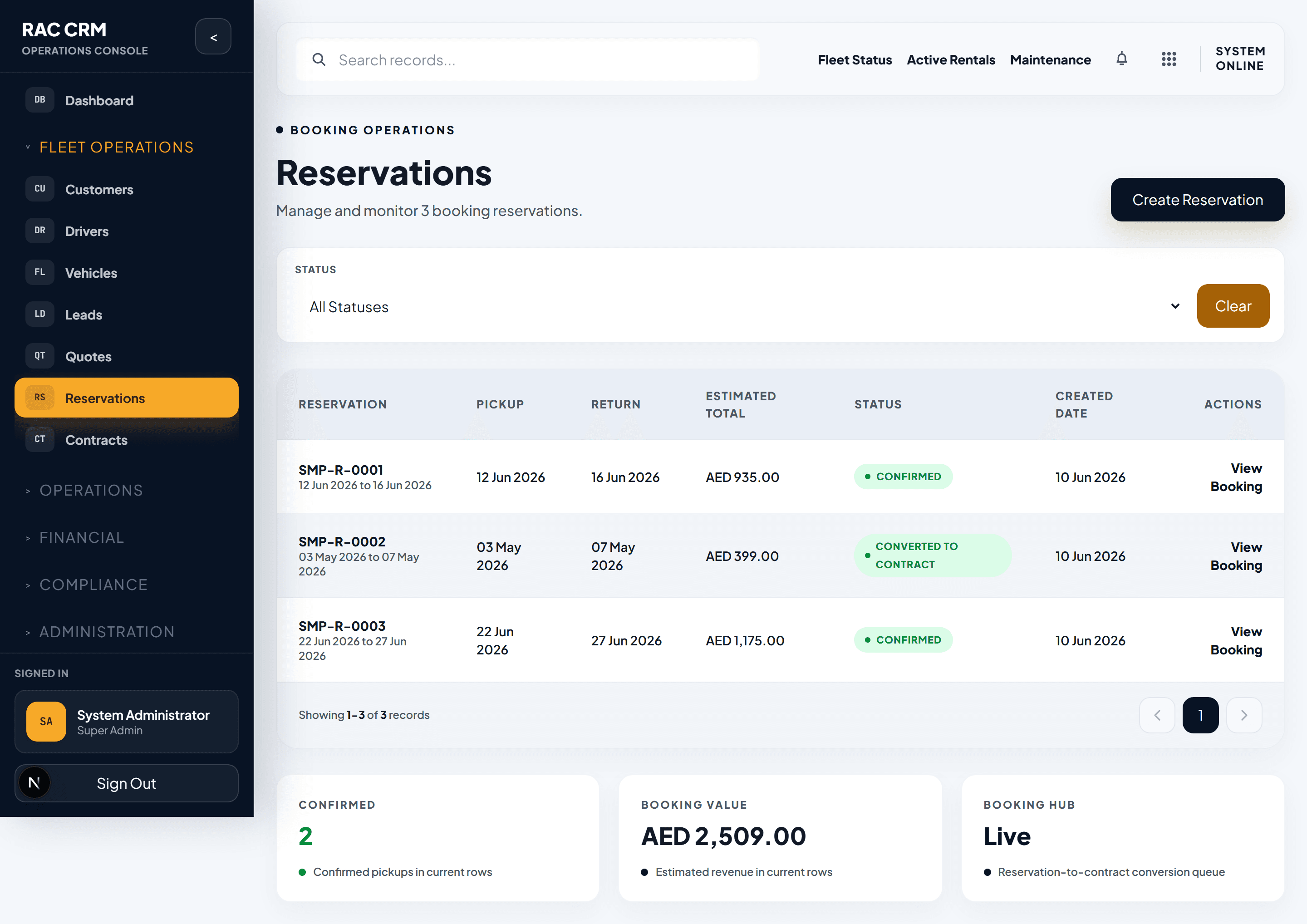
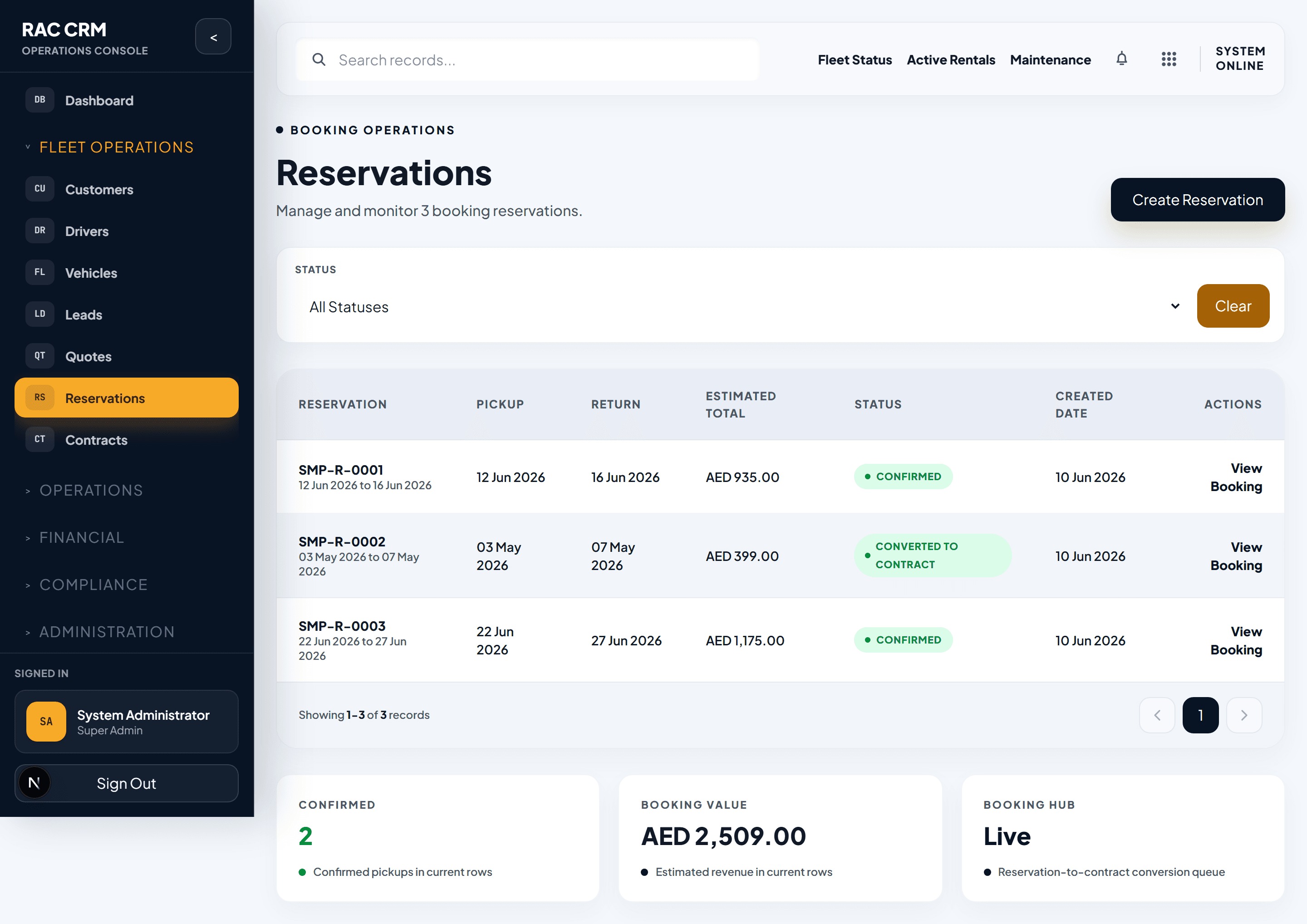
The reservation list shows all bookings with filters for date range, status, branch, vehicle category, and customer.
List Columns
| Column | Description |
|---|---|
| Reservation Number | Unique booking reference |
| Customer | Customer name linked to the reservation |
| Vehicle Category | Booked vehicle type |
| Pickup Date | Scheduled pickup date and time |
| Return Date | Scheduled return date and time |
| Pickup Branch | Branch for vehicle handover |
| Status | Current reservation status |
| Amount | Total quoted or confirmed amount |
Quick Filters
| Filter | Purpose |
|---|---|
| Status | Find bookings by workflow stage |
| Date Range | Reservations within a specific period |
| Branch | Bookings at a specific location |
| Vehicle Category | Filter by Economy, Sedan, SUV, etc. |
| Customer Type | Individual or Corporate bookings |
Reservation Statuses
Every reservation follows a controlled status lifecycle managed by the workflow engine.
| Status | Meaning | What Happens Next |
|---|---|---|
| Draft | Reservation being prepared, not yet submitted | Complete details and submit |
| Quoted | Price quote generated and shared with customer | Awaiting customer acceptance |
| Pending Confirmation | Customer accepted, awaiting final validation or payment | Confirm or cancel |
| Confirmed | Booking is locked and expected | Proceed to checkout at pickup |
| Cancelled | Booking was stopped before checkout | No further action unless reopened |
| No Show | Customer did not arrive at scheduled pickup | Mark as no-show, release vehicle |
| Converted to Contract | Checkout completed, reservation became a rental contract | Active rental |
Valid Status Transitions
| From | Allowed Next | Trigger |
|---|---|---|
| Draft | Quoted, Cancelled | Agent submits or cancels |
| Quoted | Pending Confirmation, Cancelled | Customer accepts or declines |
| Pending Confirmation | Confirmed, Cancelled | Validation passes or agent cancels |
| Confirmed | Converted to Contract, Cancelled, No Show | Checkout, cancellation, or no-show |
| Cancelled | (Terminal) | — |
| No Show | (Terminal) | — |
| Converted to Contract | (Terminal) | — |
Creating a Reservation
From a Lead
- Open the converted lead detail page.
- Click Create Reservation.
- Pre-filled data from the lead and accepted quote appears.
- Review all details and confirm.
Direct Reservation (Walk-In or Phone)
- Click New Reservation from the Reservations page.
- Fill in required fields:
| Field | Required | Notes |
|---|---|---|
| Customer | Yes | Search and select existing customer or create new |
| Primary Driver | Yes | Usually the customer; can be different |
| Vehicle Category | Yes | Economy, Sedan, SUV, Luxury, etc. |
| Specific Vehicle | No | Assign now or let fleet assign later |
| Pickup Date & Time | Yes | When the rental starts |
| Return Date & Time | Yes | When the rental ends |
| Pickup Branch | Yes | Where the customer collects the vehicle |
| Return Branch | Yes | Where the customer returns the vehicle |
| Rate Plan | Yes | Daily, weekly, monthly, or corporate rate |
| Insurance Package | Yes | Basic, standard, or premium |
| Additional Drivers | No | Add verified drivers |
| Accessories | No | GPS, child seat, extra luggage rack, etc. |
- Click Calculate Price to generate a quote breakdown.
- Review the pricing with the customer.
- Click Save as Draft to continue later, or Submit Quote to send to the customer.
Business Tip: Reservations cannot be confirmed without a complete customer profile, verified driver license, and valid vehicle category availability. Resolve these blockers before attempting confirmation.
Quote Generation and Sending
Once a reservation is created, the system generates a formal quote.
Quote Details
The quote includes:
- Rental period (pickup to return)
- Vehicle category and estimated vehicle
- Daily/weekly/monthly rate applied
- Insurance coverage selected
- Additional charges (extra driver, accessories, delivery)
- Applicable discounts or coupons
- Applicable taxes
- Total quoted amount
- Quote validity period (default 48 hours)
Sending the Quote
- Open the reservation detail page.
- Click Send Quote.
- Select the delivery channel:
- Email — sends a formatted PDF quote to the customer's email
- WhatsApp — sends a message with the quote summary and link
- SMS — sends a text message with key details
- The quote is logged in the reservation activity timeline.
Confirmation
A reservation moves to Confirmed after all validation checks pass.
Confirmation Checklist
| Check | Description |
|---|---|
| Customer profile complete | All mandatory fields filled |
| Documents uploaded | ID front/back, license |
| License verified | Driver license confirmed as valid |
| Vehicle available | Category has availability for the dates |
| Rate confirmed | Pricing approved (discount threshold checked) |
| Deposit collected | If prepayment policy applies |
| Approval obtained | If corporate rate or special discount requires it |
Confirmation Steps
- Open the reservation detail page.
- Click Confirm Reservation.
- The system runs the confirmation validation.
- If all checks pass, the reservation moves to Confirmed.
- If any check fails, the system displays the specific blocker.
- Resolve the blocker and retry.
Callout: A confirmed reservation holds a vehicle in the availability calculation. Fleet availability reflects confirmed and pending reservations to prevent overbooking.
Checkout Trigger
When the customer arrives for pickup, the confirmed reservation triggers the checkout process.
- Open the reservation detail page.
- Click Start Checkout.
- The system creates a draft rental contract pre-populated from the reservation.
- Proceed to the contract checkout wizard (see Contracts documentation).
- Once the checkout is complete, the reservation status updates to Converted to Contract.
Hold and Pause
A reservation can be temporarily held if the customer needs more time before confirming.
| Action | Effect |
|---|---|
| Hold | Preserves the reservation while awaiting customer decision; vehicle availability is reduced |
| Release Hold | Returns the vehicle to available inventory |
| Extend Hold | Moves the hold expiry date further out |
Hold rules:
- Maximum hold duration is configurable per branch (default 24 hours).
- If the hold expires without confirmation, the reservation moves to Cancelled and the vehicle is released.
- Holds on high-demand dates may require manager approval.
Cancellation
A reservation can be cancelled at any stage before checkout.
Cancellation Steps
- Open the reservation detail page.
- Click Cancel Reservation.
- Select a cancellation reason code:
| Reason Code | Description |
|---|---|
| Customer Request | Customer decided not to proceed |
| Document Issue | Customer could not provide valid documents |
| Payment Not Received | Deposit or prepayment not completed |
| Duplicate Booking | Reservation was created in error |
| No Show | Customer did not respond or arrive |
| Rate Dispute | Customer disagrees with pricing |
| Vehicle Unavailable | Fleet cannot fulfill the reservation |
| Compliance Block | Blacklist or watchlist flag identified |
| Other | Free-text explanation required |
- Add a cancellation note.
- Click Confirm Cancellation.
- The system:
- Updates the reservation status to Cancelled
- Releases the vehicle if one was assigned
- Logs the cancellation with reason, actor, and timestamp
- Triggers any refund process if prepayment was collected
Callout: Cancellation reasons are tracked for reporting. Analyze cancellation patterns by branch, source, vehicle category, and reason to identify operational improvements and revenue recovery opportunities.