Leads and Quotes
Capture leads, qualify prospects, generate quotes, and convert to reservations
Overview
The Leads and Quotes module manages the front end of the sales pipeline — from the moment a potential customer expresses interest to the point where a reservation is created. Every inquiry, whether from a website form, WhatsApp message, phone call, walk-in, email, or marketing campaign, enters the system as a lead. Qualified leads are converted into quotes, and accepted quotes become reservations.
Lead Pipeline
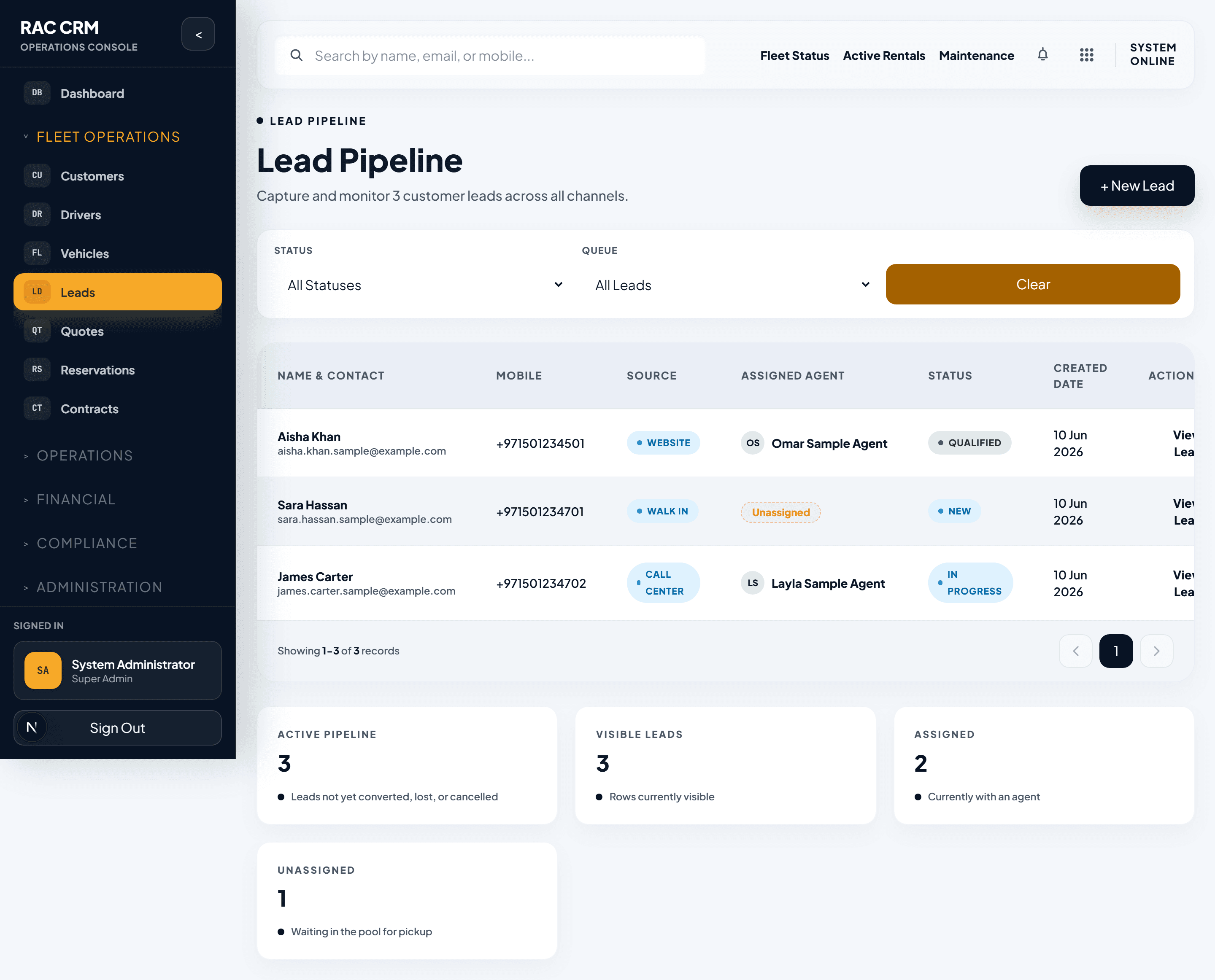
The lead pipeline tracks every prospect through defined stages until conversion or loss.
Lead Statuses
| Status | Meaning | Next Action |
|---|---|---|
| New | Inquiry received, not yet contacted | Call, message, or email the lead |
| Contacted | Initial outreach completed | Gather requirements and qualify |
| Qualified | Lead meets criteria for a potential booking | Generate a quote |
| Quoted | Price quote has been sent to the lead | Follow up and await acceptance |
| Converted | Lead accepted the quote and became a reservation | No further lead action needed |
| Lost | Lead declined or did not respond after follow-up | Mark reason and archive |
Pipeline View
The pipeline view shows leads as cards organized by status columns. Drag and drop cards between columns or use the action buttons to advance leads through the funnel.
| Column | What You See |
|---|---|
| New | Lead name, source, inquiry date, time since creation |
| Contacted | Lead name, last contact date, next follow-up date |
| Qualified | Lead name, requirements summary, estimated value |
| Quoted | Lead name, quote number, quote amount, quote expiry date |
| Converted | Lead name, reservation number, conversion date |
| Lost | Lead name, loss reason, last activity date |
Creating a New Lead
To capture a new inquiry as a lead:
- Click Add Lead from the Leads page or convert a walk-in directly.
- Fill in required fields:
| Field | Required | Notes |
|---|---|---|
| Contact Name | Yes | Full name of the prospect |
| Mobile Number | Yes | Primary contact number |
| Email Address | No | For sending quotes and follow-ups |
| Source | Yes | Website, WhatsApp, Call Center, Walk-in, Email, Campaign |
| Inquiry Type | Yes | Rental, Corporate, Complaint, General |
| Branch | Yes | Branch handling the inquiry |
| Vehicle Category | No | Preferred vehicle type if specified |
| Pickup Date | No | Desired rental start date |
| Return Date | No | Desired rental end date |
| Pickup Location | No | Preferred pickup branch or location |
| Notes | No | Any additional details from the conversation |
- Click Save. The lead is created with New status.
Business Tip: Always capture the source accurately. Source tracking helps measure marketing ROI and identify the most profitable acquisition channels.
Lead Qualification
Qualification determines whether a lead is worth pursuing. A qualified lead has:
- A confirmed need for a rental vehicle
- A timeframe for the rental
- Budget alignment with available vehicle categories
- Valid identification documents (or willingness to provide them)
- No compliance flags (not blacklisted or watchlisted)
Qualification Steps
- Open the lead detail page.
- Review the inquiry details and any previous interactions.
- Contact the lead (phone, WhatsApp, or email — logged in the activity timeline).
- Confirm their requirements match available inventory.
- Click Qualify Lead.
- Add qualification notes summarizing the conversation.
- The lead moves to Qualified status.
If the lead does not meet criteria:
- Click Mark as Lost.
- Select a loss reason:
| Reason | Description |
|---|---|
| Price too high | Lead found a cheaper alternative |
| No availability | Required vehicle category not available for dates |
| No response | Lead did not respond after follow-up |
| Wrong fit | Requirements do not match fleet offerings |
| Compliance issue | Documents invalid or blacklisted |
| Other | Free-text reason |
Quote Generation
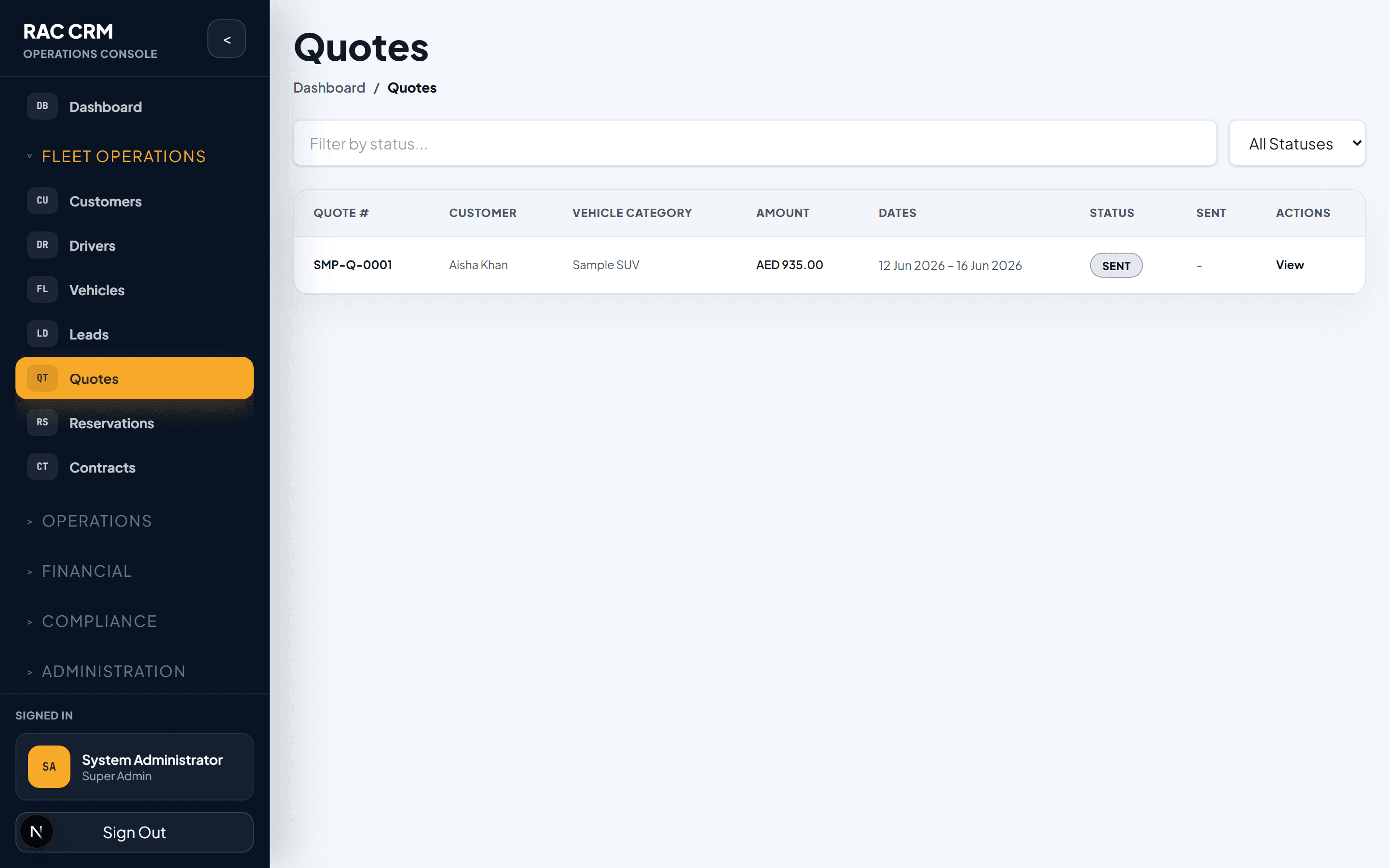
Once a lead is qualified, generate a price quote using the pricing engine.
Quote Creation Steps
- Open the qualified lead detail page.
- Click Generate Quote.
- The quote form pre-fills with lead information. Review and complete:
| Field | Required | Notes |
|---|---|---|
| Vehicle Category | Yes | Economy, Sedan, SUV, Luxury, etc. |
| Specific Vehicle | No | Assign a particular vehicle or let the system suggest |
| Pickup Date | Yes | Rental start date and time |
| Return Date | Yes | Rental end date and time |
| Pickup Location | Yes | Branch for vehicle handover |
| Return Location | Yes | Branch for vehicle return |
| Rate Plan | Yes | Daily, weekly, monthly, or corporate rate |
| Insurance Package | Yes | Basic, standard, or premium coverage |
| Additional Charges | No | Delivery, extra driver, GPS, child seat, etc. |
| Discount | No | Coupon code or manual discount (may require approval) |
- The pricing engine calculates a detailed breakdown:
| Line Item | Description |
|---|---|
| Base Rental | Daily rate × number of days |
| Insurance | Selected insurance package cost |
| Additional Drivers | Fee per additional driver |
| Accessories | GPS, child seat, etc. |
| Delivery / Pickup | One-way or delivery charges |
| Discount | Applied coupon or manual discount |
| Tax | Applicable taxes |
| Total Quote | Sum of all line items |
- Review the total. If a discount exceeds the approval threshold, the system will flag it for manager approval.
- Click Send Quote. The quote is emailed or messaged to the lead.
Callout: Quotes have an expiry date (default 48 hours). Expired quotes can be regenerated but must reflect current availability and pricing. The pricing engine snapshot preserves the original calculation for audit purposes.
Quote-to-Reservation Flow
When a lead accepts a quote, convert it into a reservation.
Conversion Steps
- Open the lead detail page.
- Verify the quote has been accepted (check activity log or confirmation message).
- Click Convert to Reservation.
- The system validates:
| Check | Required |
|---|---|
| Customer profile exists and is complete | Yes |
| Required documents are uploaded | Yes |
| Driver license is verified | Yes |
| Vehicle category has availability for requested dates | Yes |
| Quote is not expired | Yes |
-
If any check fails, resolve the issue before proceeding.
-
Confirm the conversion. The system:
- Creates a reservation linked to this lead
- Links the customer profile
- Preserves the quote and pricing snapshot
- Moves the lead to Converted status
- Generates a reservation number
-
The reservation enters the standard reservation workflow starting at Pending Confirmation or Confirmed depending on branch policy.
Business Tip: A lead that converts to a reservation is a key sales metric. Track conversion rates by source, branch, and agent to optimize your sales process.
Lead Activity Timeline
Every interaction with a lead is recorded in the activity timeline:
| Activity Type | What Is Logged |
|---|---|
| Call Made | Date, time, duration, summary |
| Message Sent | Channel (WhatsApp, SMS), content summary |
| Email Sent | Subject, date, recipient |
| Status Change | Previous status, new status, who changed it |
| Quote Generated | Quote number, amount, validity |
| Quote Sent | Channel and date of delivery |
| Note Added | Internal note with timestamp and author |
This timeline provides a complete history of the lead from creation to conversion or loss, supporting handoffs between agents and management review.