Customer Management
Create and manage customer profiles, documents, risk status, and rental history
Overview
The Customer Management module is the single source of truth for every individual and corporate customer who interacts with your rental business. Every reservation, contract, invoice, complaint, and financial transaction links back to a customer profile. Keeping profiles complete and accurate is essential for compliance, billing, and operational efficiency.
Customer List
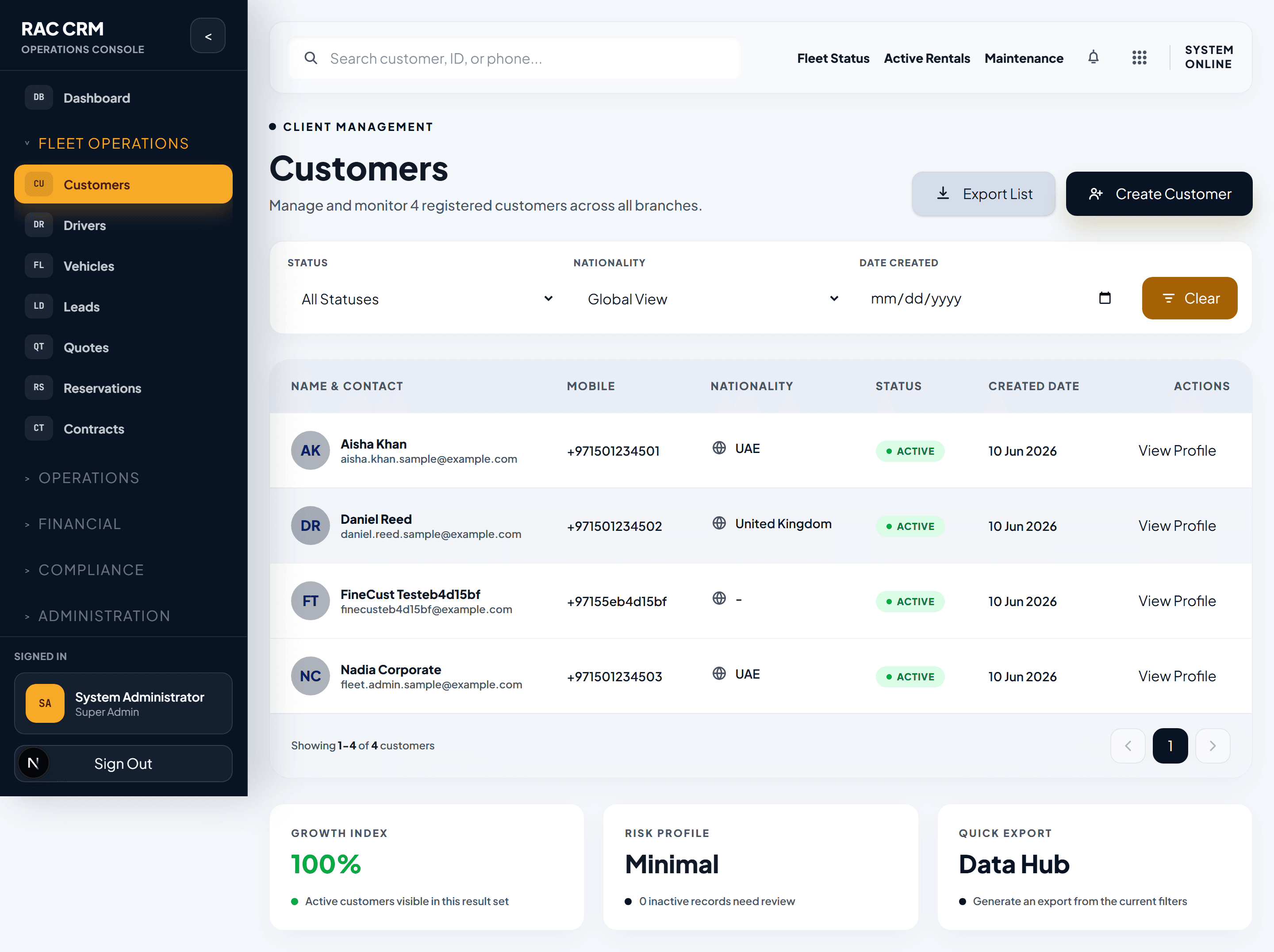
The customer list presents all registered customers in a searchable, filterable table. Use the search bar to find customers by name, email, mobile number, or ID number. Filters narrow results by status, customer type, branch, and risk level.
List Columns
| Column | Description |
|---|---|
| Name | Customer full name (individual or corporate contact) |
| Contact | Email address and primary mobile number |
| ID Document | Primary ID type and number (Emirates ID, Passport, etc.) |
| Status | Active or Inactive |
| Risk Level | Green / Yellow / Red based on risk profile score |
| Rentals | Total number of completed rentals |
| Created | Registration date |
Quick Filters
| Filter | Purpose |
|---|---|
| Status | Show only active or inactive customers |
| Customer Type | Individual or Corporate |
| Branch | Customers linked to a specific branch |
| Risk Level | High-risk customers requiring review |
| Document Expiry | Customers with expired or expiring documents |
Creating a New Customer
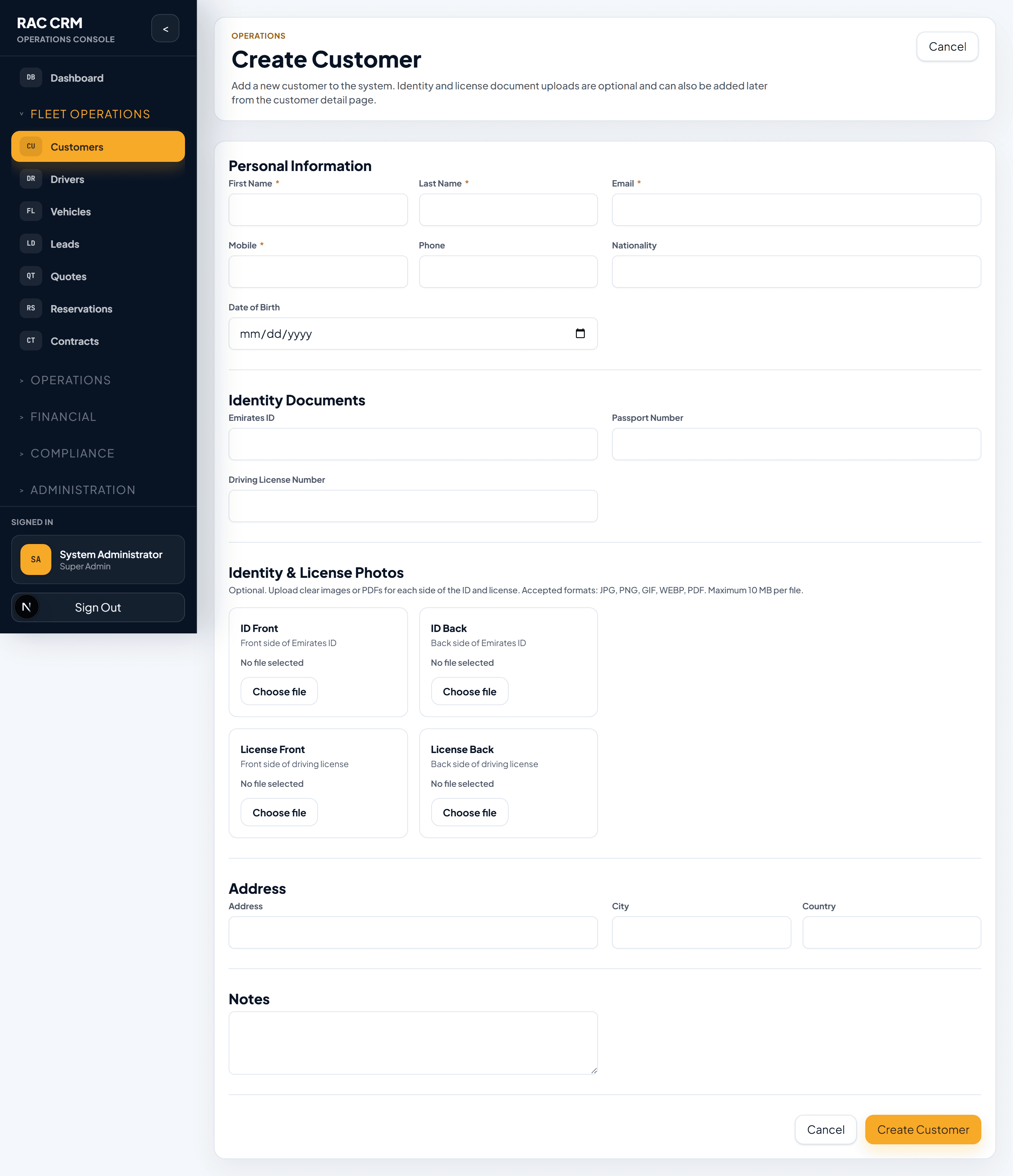
To add a new customer to the system:
- Click Add Customer from the customer list page.
- Select the Customer Type — Individual or Corporate.
- Fill in required fields:
| Field | Required | Notes |
|---|---|---|
| First Name | Yes | As shown on ID document |
| Last Name | Yes | As shown on ID document |
| Email Address | Yes | Used for notifications and invoices |
| Mobile Number | Yes | Primary contact number |
| ID Type | Yes | Emirates ID, Passport, National ID, or GCC ID |
| ID Number | Yes | Must match uploaded document |
| Nationality | Yes | Country of citizenship |
| Date of Birth | Yes | Required for age verification |
| Address | No | Residential or billing address |
| Corporate Account | No | Link to existing corporate account |
- Click Save to create the profile.
- Upload documents in the Documents tab (see below).
Business Tip: A customer cannot be assigned to a rental contract if mandatory documents are missing or expired. Complete the profile and upload documents immediately after creation.
Document Uploads
The Documents tab stores all identity and compliance documents for a customer. Each document is versioned and timestamped for audit purposes.
Required Document Types
| Document | Purpose | Expiry Tracked |
|---|---|---|
| Emirates ID — Front | Primary identity verification | Yes |
| Emirates ID — Back | Address and secondary verification | Yes |
| Driving License | Driving eligibility confirmation | Yes |
| Passport | International ID verification | Yes |
| Visa | Residency status verification | Yes |
| Corporate Trade License | Corporate customer eligibility | Yes |
Upload Steps
- Navigate to the customer detail page.
- Click the Documents tab.
- Click Upload Document.
- Select the Document Type from the dropdown.
- Upload the front image. For ID cards, upload both front and back.
- Add an expiry date if the document has one.
- Click Save.
Callout: Documents are reviewed during customer onboarding and at checkout. Expired documents trigger warnings and may block new contracts unless an authorized override is applied.
Customer Detail View
The customer detail page organizes all information into five main sections:
1. Profile
Contains personal details, contact information, nationality, date of birth, address, and corporate account linkage. Edit this section to update any personal information.
2. Documents
Shows all uploaded documents with their status:
| Status | Meaning |
|---|---|
| Pending Review | Uploaded but not yet verified |
| Verified | Reviewed and approved by staff |
| Expired | Past the expiry date |
| Rejected | Does not match requirements |
3. Rental History
Lists all past and current rental contracts for this customer. Each entry shows:
- Contract number and date range
- Vehicle rented (make, model, plate)
- Total rental amount
- Any damage or fine records linked to the rental
4. Invoices
Shows the full billing history:
- Invoice number and date
- Linked contract or reservation
- Amount, paid amount, and outstanding balance
- Payment status (Paid, Partial, Unpaid, Overdue)
5. Compliance
Displays risk-related information:
- Blacklist status (blocked or clear)
- Watchlist flags
- Risk profile score and rating
- Outstanding compliance flags or notes
Customer Risk Profile
Every customer has an automatically calculated risk profile based on rental history, payment behavior, document validity, and any compliance flags.
| Risk Level | Score Range | Action |
|---|---|---|
| Low | 0 – 30 | Standard process |
| Medium | 31 – 60 | Additional review recommended |
| High | 61 – 100 | Manager approval may be required |
Risk factors include:
- Late returns on previous contracts
- Unpaid invoices or overdue balances
- Damage history
- Complaint history
- Document expiry patterns
- Blacklist or watchlist entries
Business Tip: Review high-risk customers before confirming reservations. The risk profile does not block bookings automatically but provides decision support for front desk staff.
Search and Filtering
The customer list supports powerful search and filtering to find records quickly:
| Search By | Example |
|---|---|
| Full name | Ahmed Al Maktoum |
| ahmed@example.com | |
| Mobile | +971501234567 |
| Emirates ID | 784-1990-1234567-1 |
| Passport number | A12345678 |
| Corporate account name | Gulf Trading LLC |
Combined filters allow narrowing by branch, status, customer type, and risk level simultaneously.
Deactivating a Customer
A customer can be deactivated when they are no longer an active client. Deactivation does not delete records — it hides the customer from active lists and prevents new reservations.
Deactivation Steps
- Open the customer detail page.
- Click Actions > Deactivate Customer.
- Select a reason code:
- Voluntary closure
- Compliance issue
- Duplicate record
- Corporate account closed
- Other
- Add an internal note explaining the reason.
- Click Confirm Deactivation.
Callout: Customers with open contracts, unpaid invoices, or active complaints cannot be deactivated until those records are resolved or transferred. The system will block the action and show the remaining open items.