Vehicle Assignment Queue
Managing unassigned reservations, matching vehicles to bookings, and resolving availability conflicts before SLA breach.
Overview
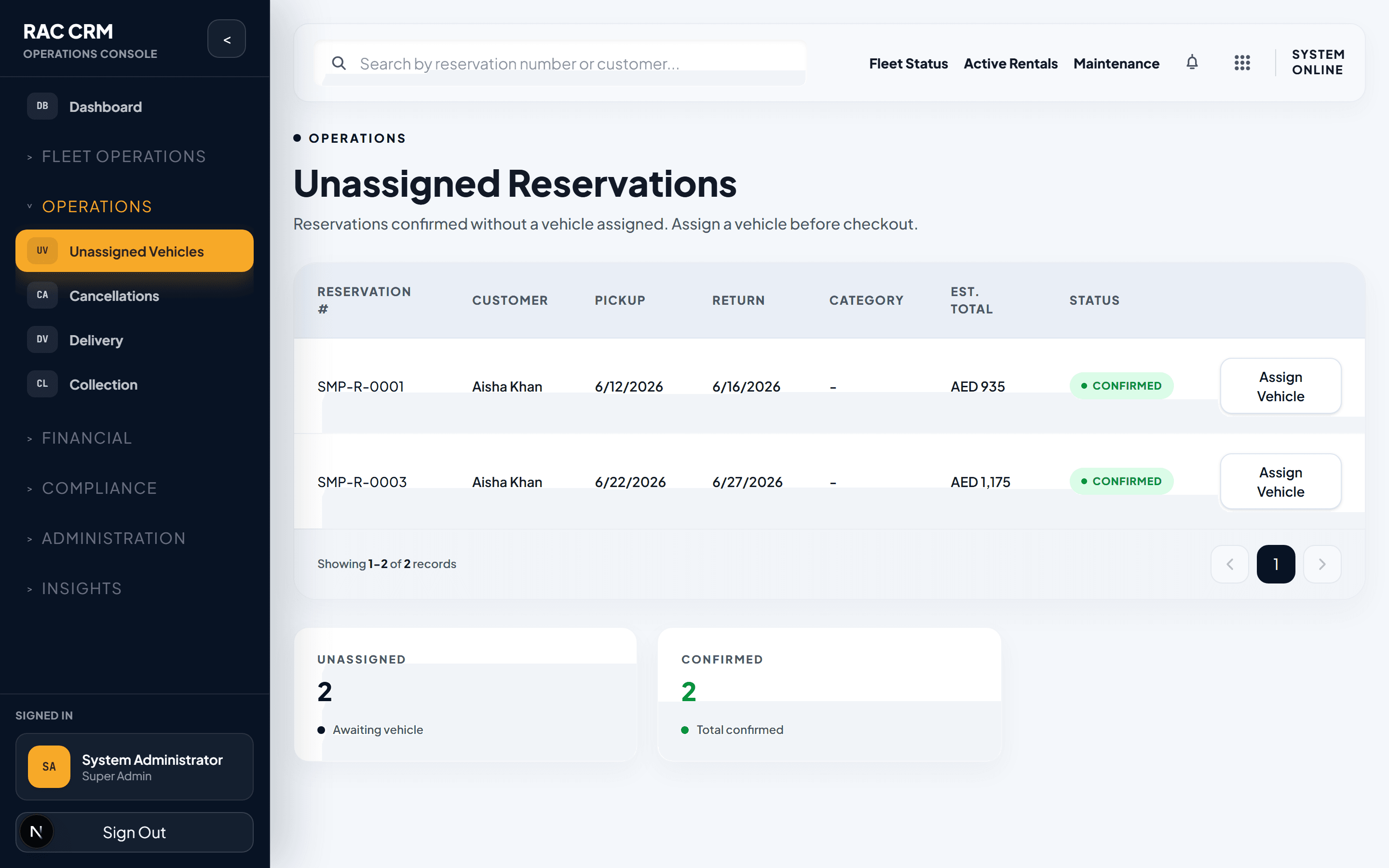
The Unassigned Queue is the fleet desk's primary workspace. Every confirmed reservation that does not yet have a vehicle assigned appears here. The goal is to match every reservation with an appropriate vehicle before the SLA window closes. Unassigned reservations that breach SLA directly impact customer satisfaction and revenue.
Why Reservations Appear as Unassigned
| Reason | Description |
|---|---|
| New confirmation | Reservation just confirmed — no vehicle selected yet |
| Vehicle swapped out | Previous vehicle removed due to maintenance, damage, or recall |
| Overbooking release | System overbooked — vehicle reassigned to higher-priority booking |
| Customer upgrade | Customer requested a different category |
| Manual unassignment | Branch staff removed assignment to re-evaluate |
Queue Columns
The unassigned queue displays these fields to help you make fast decisions:
| Column | What It Shows |
|---|---|
| Reservation # | Unique reservation identifier |
| Customer Name | Booking customer |
| Category | Requested vehicle category (economy, SUV, luxury, etc.) |
| Transmission | Manual or automatic |
| Pickup Date/Time | When the customer expects the vehicle |
| Pickup Location | Branch or delivery address |
| Days | Rental duration |
| Priority | Normal, VIP, Corporate, or Urgent |
| SLA Timer | Time remaining before breach |
| Actions | Suggest, Assign, View |
Step-by-Step: Assigning a Vehicle
Step 1 — Review the Reservation
Click the reservation row to expand the details panel:
- Read the customer's special requests (if any).
- Note the category, transmission, and extras.
- Check the pickup location and time.
Step 2 — Request Vehicle Suggestions
Click Suggest Vehicle. The system runs a matching algorithm that considers:
| Factor | Weight | Explanation |
|---|---|---|
| Category match | High | Must match requested category or higher |
| Transmission match | High | Manual vs. automatic — must match |
| Availability window | High | Vehicle must be free for the entire rental period |
| Location proximity | Medium | Vehicle at the same branch preferred |
| Mileage bracket | Low | Lower-mileage vehicles preferred for longer rentals |
| Vehicle age | Low | Newer vehicles preferred for VIP customers |
| Extras compatibility | Medium | Vehicle must support required extras (roof rack, tow bar) |
The system returns a ranked list of available vehicles.
Step 3 — Select and Assign
-
Review the suggested vehicles.
-
Click Assign on your chosen vehicle.
-
Confirm the assignment. The system:
- Updates the reservation with the vehicle ID.
- Updates the vehicle status to
reserved. - Removes the reservation from the unassigned queue.
- Creates an audit log entry.
Step 4 — Notify the Customer (Optional)
If delivery is required, the assignment automatically triggers a delivery task creation. For branch pickup, the customer receives a notification that their vehicle is confirmed.
Manual Assignment
If the suggestion engine does not return suitable results, you can assign manually:
- Click Manual Assign instead of Suggest.
- Search the fleet by category, location, or plate number.
- The system validates:
- Vehicle is
available(notreserved,rented, ormaintenance). - No scheduling conflict exists.
- Vehicle is
- Select the vehicle and confirm.
Note: Manual assignments bypass the suggestion algorithm but still enforce conflict detection. You cannot assign a vehicle that is already reserved or rented for overlapping dates.
Availability Conflict Detection
The system prevents double-booking by checking:
| Conflict Type | Detection Method | Resolution |
|---|---|---|
| Overlapping reservation | Date range overlap check | Block assignment, suggest alternative |
| Maintenance window | Calendar check against maintenance schedule | Block assignment, suggest alternative |
| Pending collection | Vehicle has an active contract ending close to pickup | Warn if gap < 2 hours |
| Pending delivery | Vehicle is currently being delivered | Block assignment |
| Insurance expiry | Vehicle insurance expires during rental | Block assignment, flag for renewal |
Reassignment
To reassign a vehicle that is already assigned:
-
Open the reservation from the Assigned tab.
-
Click Reassign Vehicle.
-
Select a new vehicle from the suggestions.
-
Enter a reason for reassignment (required).
-
Confirm. The system:
- Releases the original vehicle (status →
available). - Assigns the new vehicle (status →
reserved). - Notifies the customer of the change (if category changed).
- Logs the reassignment with reason.
- Releases the original vehicle (status →
Policy: Reassignment must be communicated to the customer at least 4 hours before pickup if the category changes. Same-category reassignment does not require customer notification.
SLA Tracking
Every unassigned reservation has a live SLA timer:
| Time to Pickup | SLA Status | Action Required |
|---|---|---|
| > 4 hours | Normal | Assign at your pace |
| 2–4 hours | Warning | Prioritize this assignment |
| < 2 hours | Critical | Assign immediately or escalate |
| Past pickup time | Breached | Assign + notify branch manager |
The SLA dashboard at Operations → SLA shows all unassigned reservations sorted by urgency.
Priority Rules
When multiple reservations compete for the same vehicle:
| Priority Level | Override Rule |
|---|---|
urgent | Takes any available vehicle, even if reassigned from normal |
vip | Takes precedence over normal within same category |
corporate | Same as VIP — corporate SLA guarantees apply |
normal | First-come, first-served |
Escalation: If no vehicle is available for a
viporcorporatereservation within 2 hours of SLA breach, the system escalates to the Operations Director automatically.
Callouts
Never leave a reservation unassigned past SLA breach without escalating. The system tracks assignment time and reports it to branch management daily.
Peak season tip: During high-demand periods, use the Fleet Availability Forecast (Reports → Fleet) to proactively identify gaps 7 days ahead.