Collection Tasks
Managing vehicle collection tasks at contract end, including standard retrieval, force collection, and condition documentation.
Overview
Collection tasks manage the retrieval of vehicles when a rental contract ends — whether on time, late, or requiring forced retrieval. Every collection captures vehicle condition, final mileage, fuel level, and any new damage. This is your primary tool for protecting the fleet from undetected damage and revenue leakage.
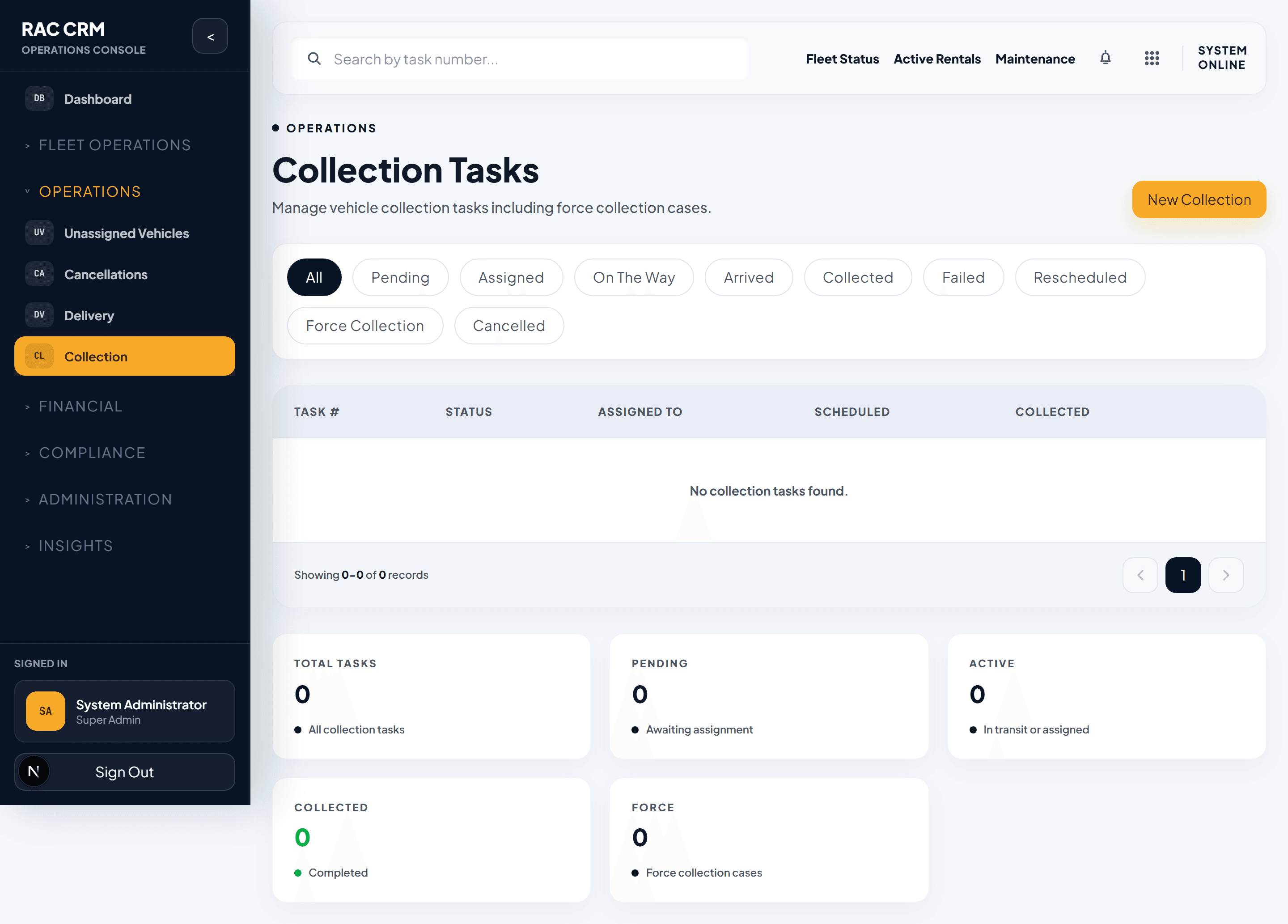
Task Lifecycle
| Status | Meaning | Who Sets It |
|---|---|---|
pending | Task created, awaiting driver assignment | System (auto-created 24h before contract end) |
assigned | Driver assigned, awaiting dispatch | Branch staff |
on_the_way | Driver en route to collection location | Driver (mobile app) |
arrived | Driver at vehicle location | Driver (mobile app) |
collected | Vehicle retrieved, inspection complete | Driver (mobile app) |
failed | Collection could not be completed | Driver (mobile app) |
rescheduled | Collection date/time changed | Branch staff |
Collection Types
| Type | Description | Trigger |
|---|---|---|
standard | Normal end-of-contract retrieval | Auto-created 24h before contract end |
early_return | Customer returns vehicle before contract end | Customer or staff initiated |
late | Vehicle not returned by contract end | Auto-triggered after grace period |
force_collection | Forced retrieval due to non-payment, fraud, or policy violation | Manager or compliance initiated |
branch_return | Customer returns to branch location | Customer-initiated |
Step-by-Step: Processing a Standard Collection
Step 1 — Assign a Driver
- Open Operations → Collections and filter by
pending. - Review the task details: customer, vehicle, return location, contract end time.
- Click Assign Driver and select from available drivers.
- The driver receives a push notification.
Step 2 — Driver Dispatches
The driver opens the task on their mobile app and clicks Start Collection. Status changes to on_the_way.
Step 3 — Arrival and Vehicle Inspection
When the driver arrives, they complete a thorough inspection:
| Inspection Item | Captured Via | Required |
|---|---|---|
| Exterior condition — all panels | Photos (minimum 8 angles) | Yes |
| Interior condition | Photos (4 directions) | Yes |
| Odometer reading | Manual entry + photo | Yes |
| Fuel level | Manual entry + photo | Yes |
| Tire condition | Photos | Yes |
| Windshield and mirrors | Photos | Yes |
| New damage (if any) | Photos + description | If found |
| GPS unit present | Checkbox | If applicable |
| Child seat present | Checkbox | If applicable |
| Registration documents in vehicle | Checkbox | Yes |
| Personal items left behind | Photos + description | If found |
Step 4 — Condition Comparison
The system automatically compares the return inspection against the checkout inspection:
| Comparison | What It Shows |
|---|---|
| Mileage delta | Total km driven during rental |
| Fuel level delta | Fuel consumed vs. prepaid fuel option |
| New damage | Damage panels flagged in red |
| Missing items | Extras checked out but not returned |
| cleanliness | Interior cleanliness rating change |
Any discrepancies are highlighted for the driver to confirm and annotate.
Step 5 — Complete Collection
The driver clicks Complete Collection. The system:
- Updates task status to
collected. - Updates vehicle status to
inspection_pending(if damage found) oravailable(if clean). - Updates reservation status to
closed. - Sends the customer a collection confirmation with inspection summary.
- Creates an audit log entry.
Late Vehicle Collections
When a vehicle is not returned by the contract end time:
| Time After Contract End | Action | Automated? |
|---|---|---|
| +0 min | Grace period begins (30 min standard) | Yes |
| +30 min | Late fee starts accruing (hourly rate) | Yes |
| +1 hour | Customer receives "vehicle overdue" notification | Yes |
| +4 hours | Late event created, collections team alerted | Yes |
| +24 hours | Branch manager notified, vehicle flagged as overdue | Yes |
| +48 hours | Force collection process may be initiated | Manual |
Force Collection
Force collection is initiated when a vehicle must be retrieved urgently — typically for non-payment, suspected fraud, or insurance expiry.
When to Initiate Force Collection
| Scenario | Authority Required |
|---|---|
| Customer non-payment after 7 days overdue | Branch Manager |
| Suspected fraud or stolen vehicle | Operations Director + Security |
| Insurance policy expiring on vehicle | Fleet Manager |
| Customer unreachable after 48 hours | Branch Manager |
| Vehicle used in illegal activity | Compliance + Legal |
Force Collection Process
- Initiate — Branch manager creates force collection task from the reservation.
- Assign — Assign to a senior driver or security-linked retrieval team.
- Locate — Use GPS tracker data to locate the vehicle.
- Retrieve — Driver retrieves vehicle. If customer is present, inform them politely and document the interaction.
- Document — Full condition photos, GPS history export, final mileage.
- Escalate — If vehicle cannot be located within 24 hours, escalate to Operations Director and Legal.
Failed Collections
A collection may fail for these reasons:
| Failure Reason | Next Step |
|---|---|
| Customer not available | Reschedule + notify customer |
| Vehicle not at expected location | Use GPS tracker to locate |
| Vehicle locked / keys unavailable | Contact customer or use spare key |
| Customer refuses to hand over | Escalate to branch manager immediately |
| Vehicle not found | Escalate to Operations Director |
Condition Photo Standards
Good photos protect the company in disputes. Enforce these standards:
| Requirement | Standard |
|---|---|
| Lighting | Daylight or well-lit area |
| Distance | Close enough to show detail, wide enough to show context |
| Coverage | All four sides, all four corners, roof if accessible |
| Damage close-ups | Maximum 15cm distance for any damage |
| Timestamp | Auto-captured by mobile app — never edit |
Callouts
Force collection is a sensitive operation. Always follow the escalation matrix. Never send a single driver to a force collection without GPS tracking active and branch notification.
Condition photos are stored immutably. They cannot be deleted or edited after upload. This protects both the customer and the company in damage disputes.