Cancellation Management
How to process reservation cancellations, handle no-shows, apply billing rules, and manage refund eligibility.
Overview
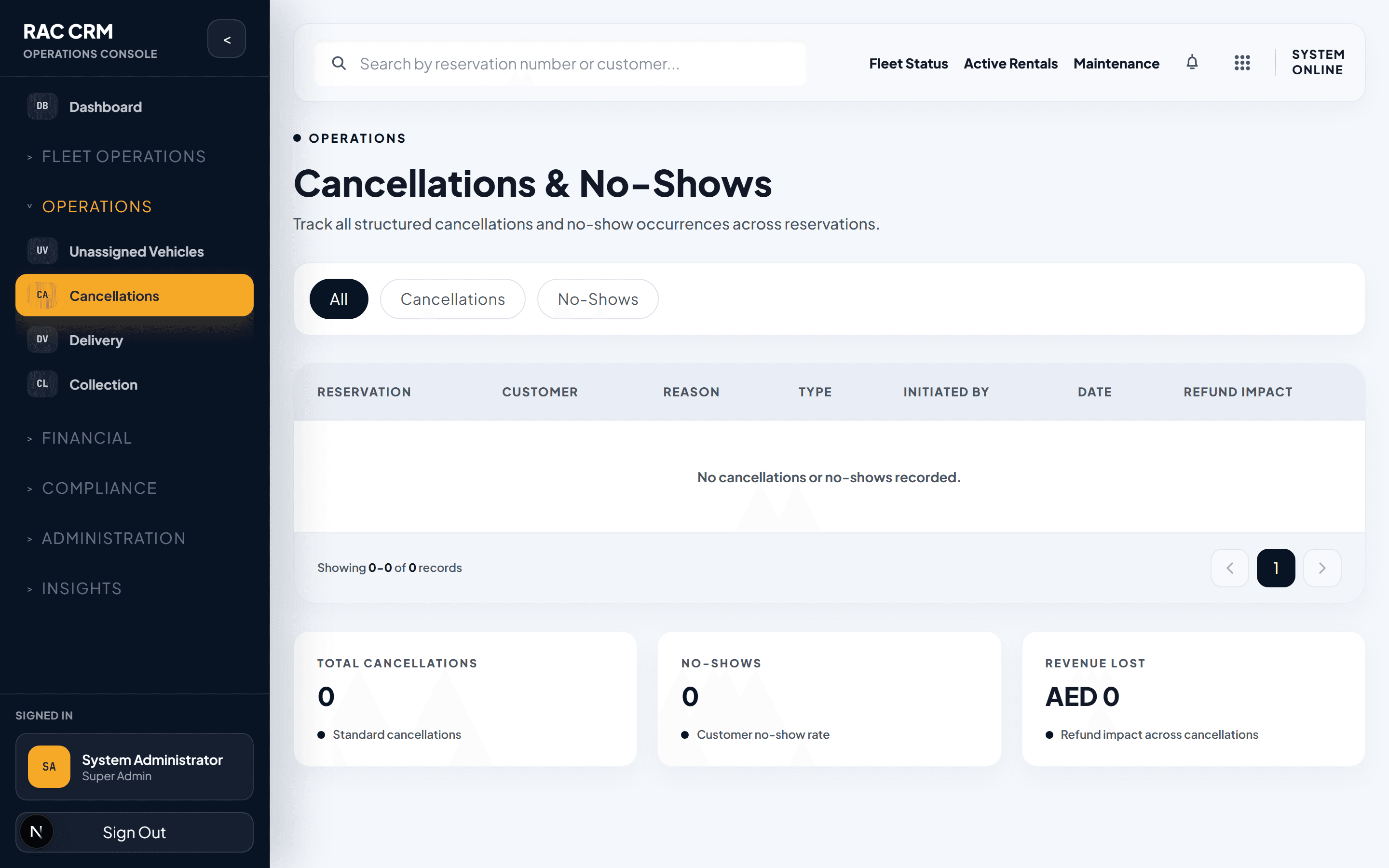
Cancellation management ensures every reservation ending early or not showing is handled consistently, with proper billing, documentation, and customer communication. All cancellations flow through a structured process so that revenue impact is tracked and refund decisions are auditable.
Cancellation Reason Codes
Every cancellation must be tagged with a reason code. The system uses these codes for reporting, policy enforcement, and refund eligibility.
| Code | Reason | Refund Eligible | Billing Impact |
|---|---|---|---|
CUSTOMER_REQUEST | Customer voluntarily cancels | Depends on timing | May incur cancellation fee |
NO_SHOW | Customer did not collect vehicle | No | Full charge applies |
DOCUMENT_ISSUE | Customer documents invalid/expired | Yes (full) | No charge |
VEHICLE_UNAVAILABLE | Fleet cannot fulfill reservation | Yes (full) | No charge |
DAMAGE_PRE_RENTAL | Damage found during inspection before handover | No | Inspection fee may apply |
POLICE_HOLD | Vehicle held by authorities | Yes (full) | No charge |
DUPLICATE_BOOKING | System or customer error — duplicate reservation | Yes (full) | No charge |
FORCE_MAJEURE | Weather, road closure, government order | Yes (full) | No charge |
SYSTEM_ERROR | Platform or payment system error | Yes (full) | No charge |
OTHER | Requires free-text explanation | Manager review | Manager review |
Rule: Reason codes
VEHICLE_UNAVAILABLE,DOCUMENT_ISSUE,POLICE_HOLD,DUPLICATE_BOOKING,FORCE_MAJEURE, andSYSTEM_ERRORalways qualify for full refund. Other codes depend on timing and policy.
Cancellation Flow
Step 1 — Initiate Cancellation
The cancellation can be initiated from:
- Customer request — via phone, email, walk-in, or portal.
- System trigger — no-show after pickup window expires.
- Staff action — branch identifies an issue (e.g., vehicle damage before handover).
Navigate to the reservation and click Cancel Reservation.
Step 2 — Select Reason Code
Choose the appropriate reason code from the dropdown. If the reason is OTHER, the system requires a free-text explanation of at least 20 characters.
Step 3 — Confirm Billing Impact
The system calculates and displays the billing impact before you confirm:
| Timing | Customer-Initiated Fee | No-Show Fee | Refund |
|---|---|---|---|
| More than 48 hours before pickup | None | N/A | Full deposit refund |
| 24–48 hours before pickup | 25% of first-day rate | N/A | Deposit minus fee |
| 12–24 hours before pickup | 50% of first-day rate | N/A | Deposit minus fee |
| Less than 12 hours before pickup | 100% of first-day rate | N/A | Deposit minus fee |
| No-show (after pickup window) | N/A | 100% of first-day rate | No deposit refund |
Step 4 — Process Refund (if applicable)
If the cancellation qualifies for a refund:
- Select the refund method (original payment method or credit to customer account).
- Enter the refund amount (system pre-fills based on policy).
- Add an optional note explaining the refund decision.
- Click Submit for Approval if the refund exceeds branch authority.
Branch authority limit: Refunds up to 500 AED can be approved by the Branch Manager. Anything above requires Operations Director approval.
Step 5 — Confirm and Notify
Click Confirm Cancellation. The system will:
- Update the reservation status to
cancelled. - Release the vehicle back to
available(if assigned). - Send a cancellation confirmation to the customer (email + SMS).
- Create an audit log entry.
- Update the billing record.
No-Show Handling
A no-show occurs when the customer does not collect the vehicle within the pickup window.
| Step | Action | Automated? |
|---|---|---|
| 1 | Pickup window expires (typically +2 hours from scheduled time) | Yes |
| 2 | System sends "Are you still coming?" notification | Yes |
| 3 | 30-minute grace period begins | Yes |
| 4 | Grace period expires — reservation marked no_show | Yes |
| 5 | Vehicle released back to available pool | Yes |
| 6 | No-show fee applied to customer account | Yes |
| 7 | Customer notified of no-show charge | Yes |
| 8 | Staff review if customer disputes | Manual |
Important: No-show charges are non-negotiable at branch level. If a customer contacts you after a no-show, direct them to raise a dispute through the portal or customer service line.
Billing Impact Summary
When a cancellation is processed, the billing module updates automatically:
| Item | What Happens |
|---|---|
| Security Deposit | Released if no outstanding charges; held if cancellation fee is pending |
| Prepaid Amounts | Refunded per policy above |
| Add-Ons (insurance, GPS, child seat) | Reversed if not yet consumed |
| Delivery/Collection Fees | Waived if service not yet rendered |
| Cancellation Fee | Charged to customer's invoice |
| Outstanding Balance | Updated on customer account |
Refund Workflow
| Step | Action | Who |
|---|---|---|
| 1 | Refund calculated by system | Automated |
| 2 | Refund submitted | Branch staff |
| 3 | Approval check (< 500 AED) | Branch Manager |
| 4 | Approval check (≥ 500 AED) | Operations Director |
| 5 | Payment gateway refund initiated | Billing system |
| 6 | Refund confirmation sent to customer | Automated |
| 7 | Audit log entry created | Automated |
Cancellation Reports
Access cancellation reports from Reports → Cancellation Analytics:
| Report | Purpose |
|---|---|
| Daily Cancellation Count | Track volume by branch, reason, and time |
| No-Show Report | Identify repeat no-show customers |
| Revenue Lost to Cancellations | Financial impact summary |
| Refund Processing Time | SLA compliance for refunds |
| Cancellation by Channel | Compare online vs. phone vs. walk-in cancellations |
Callouts
Repeat No-Show Policy: Customers with 3 or more no-shows in 90 days are flagged in the system. The next reservation requires prepayment and is non-refundable.
Refund SLA: Refunds must be processed within 3 business days of cancellation approval. Track this in the Refund Processing Time report.