Delivery Tasks
Managing vehicle delivery tasks from dispatch to customer handover, including task lifecycle, delivery types, and proof capture.
Overview
Delivery tasks manage the process of getting a reserved vehicle to the customer. Each task tracks the full lifecycle from dispatch assignment through successful handover — or documents failure and rescheduling. Delivery is one of the highest-visibility touchpoints for customer satisfaction.
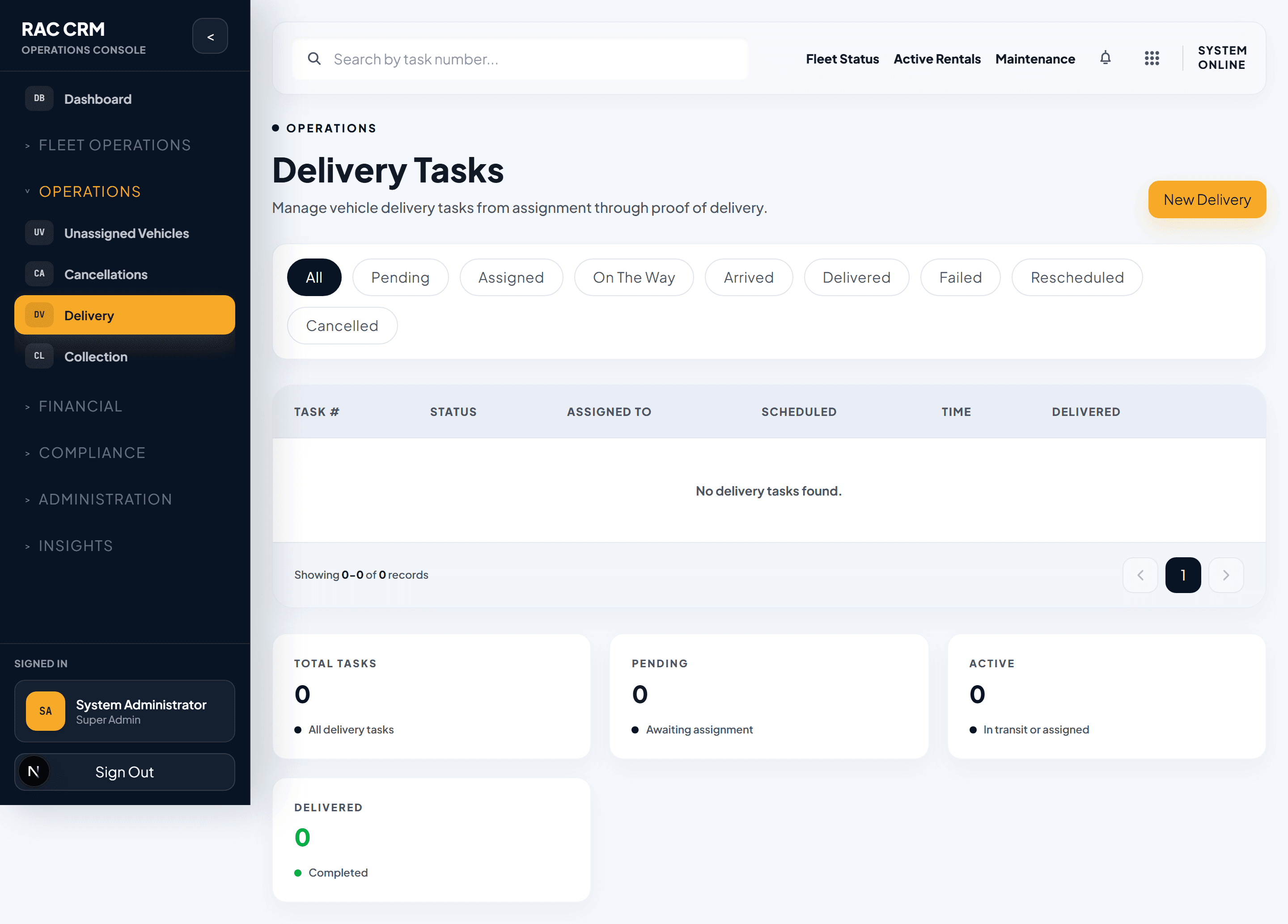
Task Lifecycle
Every delivery task moves through a defined status flow:
| Status | Meaning | Who Sets It |
|---|---|---|
pending | Task created, awaiting driver assignment | System (on reservation confirmation) |
assigned | Driver assigned, preparing for dispatch | Branch staff |
on_the_way | Driver has departed with the vehicle | Driver (mobile app) |
arrived | Driver arrived at delivery location | Driver (mobile app) |
delivered | Handover complete, customer signed | Driver (mobile app) |
failed | Delivery could not be completed | Driver (mobile app) |
rescheduled | Delivery date/time changed | Branch staff |
Status Rules
- A task can only move forward in the lifecycle. To go back, branch staff must reschedule.
- The
failedstatus requires a failure reason (customer not available, wrong address, vehicle issue, access denied, other). - A
faileddelivery automatically creates a rescheduled task for the next business day unless the reservation is cancelled.
Delivery Types
The system supports multiple delivery models depending on the customer's booking and location.
| Type | Description | Typical Use Case |
|---|---|---|
branch_pickup | Customer collects from branch | Walk-in, local customers |
self_pickup | Customer collects from designated lot | Airport self-service, mall parking |
customer_delivery | Driver delivers to customer's address | Home delivery, premium service |
airport | Delivery at airport arrivals terminal | Tourist and business travelers |
hotel | Delivery at hotel reception | Hotel partnerships |
corporate | Delivery at corporate office | Business account clients |
Note:
branch_pickupandself_pickupare technically not delivery tasks — they appear in the delivery queue as "Pickup" tasks with a simplified flow (vehicle staged → customer arrives → handover).
Step-by-Step: Processing a Delivery
Step 1 — Assign a Driver
- Open Operations → Delivery and filter by
pendingstatus. - Click the task to view details (customer, address, time window, vehicle).
- Click Assign Driver.
- Select from available drivers. The system filters by:
- Active status
- Available today
- Licensed for the vehicle class
- Not already assigned to another task in the same window
- Click Confirm Assignment.
The driver receives a push notification on their mobile app.
Step 2 — Prepare the Vehicle
Before dispatch, the driver (or branch staff) must complete:
| Check Item | Required? | Notes |
|---|---|---|
| Exterior walk-around photos | Yes | Minimum 4 angles |
| Fuel level confirmation | Yes | Must match checkout record |
| Mileage/odometer reading | Yes | Must match checkout record |
| Cleanliness check | Yes | Interior and exterior |
| Extras loaded (child seat, GPS, etc.) | If applicable | Confirm against reservation |
| Keys and documents in vehicle | Yes | Registration, insurance card |
Step 3 — Dispatch
The driver clicks Start Delivery on their mobile app. The task status changes to on_the_way and the customer receives a live tracking notification.
Step 4 — Arrival
When the driver reaches the delivery location, they click Arrived. The system:
- Notifies the customer that the driver is at the location.
- Starts a 30-minute arrival window timer.
Step 5 — Handover and Proof Capture
The driver completes the handover checklist:
| Handover Item | Captured Via | Required |
|---|---|---|
| Customer ID verification | Photo scan | Yes |
| Driving license verification | Photo scan | Yes |
| Customer signature | Digital signature on mobile | Yes |
| Exterior condition photos | Camera (minimum 8 angles) | Yes |
| Customer acknowledgment of terms | Checkbox on mobile | Yes |
| Delivery confirmation code | Customer-provided code | Yes |
Step 6 — Task Completion
The driver clicks Complete Delivery. The system:
- Updates task status to
delivered. - Updates the reservation status to
active. - Updates the vehicle status to
rented. - Creates an audit log entry.
- Sends the customer a confirmation email with rental details.
Handling Failed Deliveries
If the delivery cannot be completed, the driver selects a failure reason:
| Failure Reason | Next Action |
|---|---|
| Customer not available | Reschedule + notify customer |
| Wrong address | Customer to update address via portal |
| Vehicle issue (breakdown, damage found) | Reassign vehicle, restart delivery |
| Access denied (gated community, wrong floor) | Driver contacts customer for access |
| Customer refused handover | Escalate to branch manager |
| Other | Branch staff to review and decide |
Rule: Failed deliveries must be reviewed by a branch staff member within 2 hours. The driver cannot reschedule independently — they must report the failure and await branch instruction.
Delivery SLA
| Delivery Type | SLA Window | Warning | Breach |
|---|---|---|---|
| Customer Delivery | 2-hour window from booking | 30 min before window | At window end |
| Airport | Within 30 min of flight landing | 15 min after landing | 45 min after landing |
| Hotel | Within 1 hour of agreed time | 15 min before | 30 min after |
| Corporate | Within 1-hour window | 30 min before | At window end |
Rescheduling
To reschedule a delivery:
- Open the task in
pendingorassignedstatus. - Click Reschedule.
- Select a new date and time window.
- Add a reason (required).
- The customer is notified of the change.
Limit: A delivery can be rescheduled a maximum of 2 times. After that, the reservation is flagged for branch manager review.
Callouts
Proof of delivery is mandatory. A task cannot be marked delivered without customer signature, ID photos, and exterior condition photos. Incomplete handovers create disputes that the branch will lose.
Airport deliveries are tracked against flight landing times. If a flight is delayed, the system auto-adjusts the delivery window based on live flight data where available.