Tenants & Branches
Manage tenants, business units, and branches, understand tenant isolation, and assign multi-level user access across your organization.
Tenants & Branches
The Rent a Car CRM is a multi-tenant platform. This means a single installation can serve multiple independent rental companies (tenants), each with their own business units, branches, users, vehicles, customers, and financial data — completely isolated from each other.
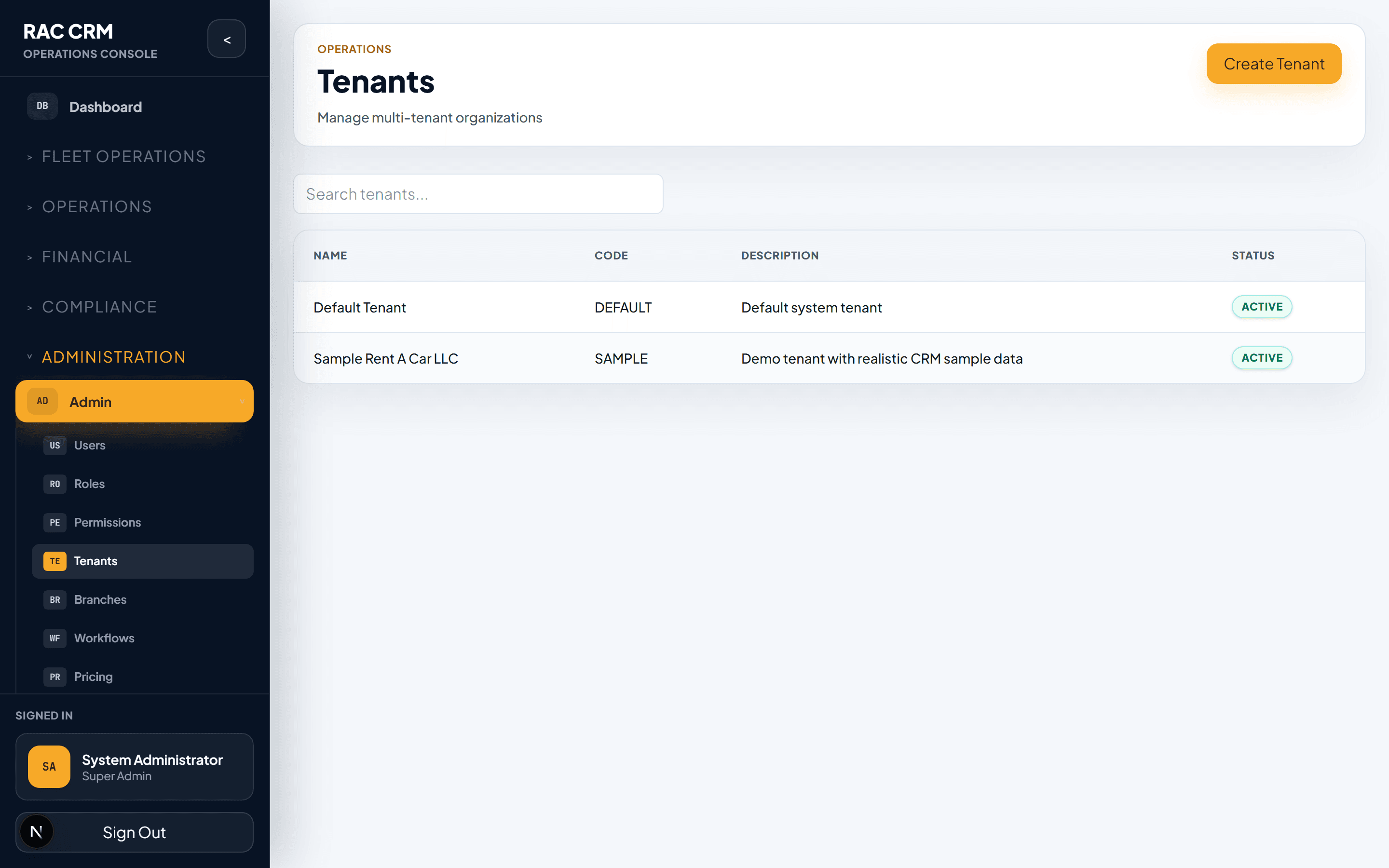
Multi-Tenant Architecture
What Is a Tenant?
A tenant represents a separate rental company or legal entity. Each tenant's data is fully isolated — no tenant can ever see another tenant's data unless explicitly configured for cross-tenant reporting (which requires special permissions).
Tenant Hierarchy
Tenant (Company)
  ├── Business Unit (Region / Division)
  │     ├── Branch (Physical Location)
  │     │     ├── Users
  │     │     ├── Vehicles
  │     │     ├── Customers
  │     │     ├── Contracts
  │     │     └── ...
  │     └── Branch
  │           └── ...
  └── Business Unit
        └── Branch
              └── ...
Tenant Isolation Rule
Tenant isolation is enforced at the database level. Every query automatically filters by the authenticated user's tenant_id. There is no way to accidentally access another tenant's data. This is a hard security boundary, not a soft filter.
| Isolation Level | Description |
|---|---|
| Tenant | Complete data separation between companies |
| Business Unit | Data filtered within a tenant by division/region |
| Branch | Data filtered within a business unit by physical location |
Tenant Management
Tenant List
The tenant list shows all registered tenants in the system.
| Column | Description |
|---|---|
| Tenant Name | Company name |
| Code | Short code (e.g., "RAC001") |
| Status | Active, Suspended, Inactive |
| Business Units | Count of business units |
| Branches | Count of branches |
| Users | Count of active users |
| Created | Registration date |
Creating a New Tenant
Navigate to Admin → Tenants → New Tenant — The tenant creation form opens.
Enter company details — Company name, legal name, code, registration number, tax ID.
Configure settings — Default currency, timezone, language, fiscal year start.
Set password policy — Minimum length, complexity requirements, session timeout.
Configure approval thresholds — Discount limits, refund limits, escalation rules.
Save — The tenant is created. A default business unit and branch are automatically created.
Tenant Configuration Fields
| Field | Description | Example |
|---|---|---|
| Tenant Name | Display name | "Premium Rent a Car" |
| Legal Name | Registered legal entity name | "Premium Rent a Car LLC" |
| Code | Unique short code | "PRAC" |
| Registration Number | Trade license number | "CN-12345" |
| Tax ID / TRN | Tax registration number | "100123456789001" |
| Default Currency | Transaction currency | AED |
| Timezone | Default timezone | Asia/Dubai |
| Language | Default language | English |
| Fiscal Year Start | Month and day | January 1 |
| Logo | Company logo for documents | Upload file |
| Status | Active, Suspended, Inactive | Active |
Business Units
A business unit represents a major operational division within a tenant — typically a region, city, or business line.
Business Unit Fields
| Field | Description | Example |
|---|---|---|
| Name | Business unit name | "Dubai Operations" |
| Code | Short code | "DXB" |
| Manager | Assigned manager | User reference |
| Status | Active, Inactive | Active |
When to Use Business Units
| Scenario | Use Business Unit? |
|---|---|
| Single-city operation with 5 branches | Yes — one BU for the city |
| Multi-city operation (Dubai + Abu Dhabi) | Yes — one BU per city |
| Separate passenger and commercial fleets | Yes — one BU per fleet type |
| Single branch office | Yes (required by data model) |
Branch Management
A branch represents a physical location — an office, showroom, or service center.
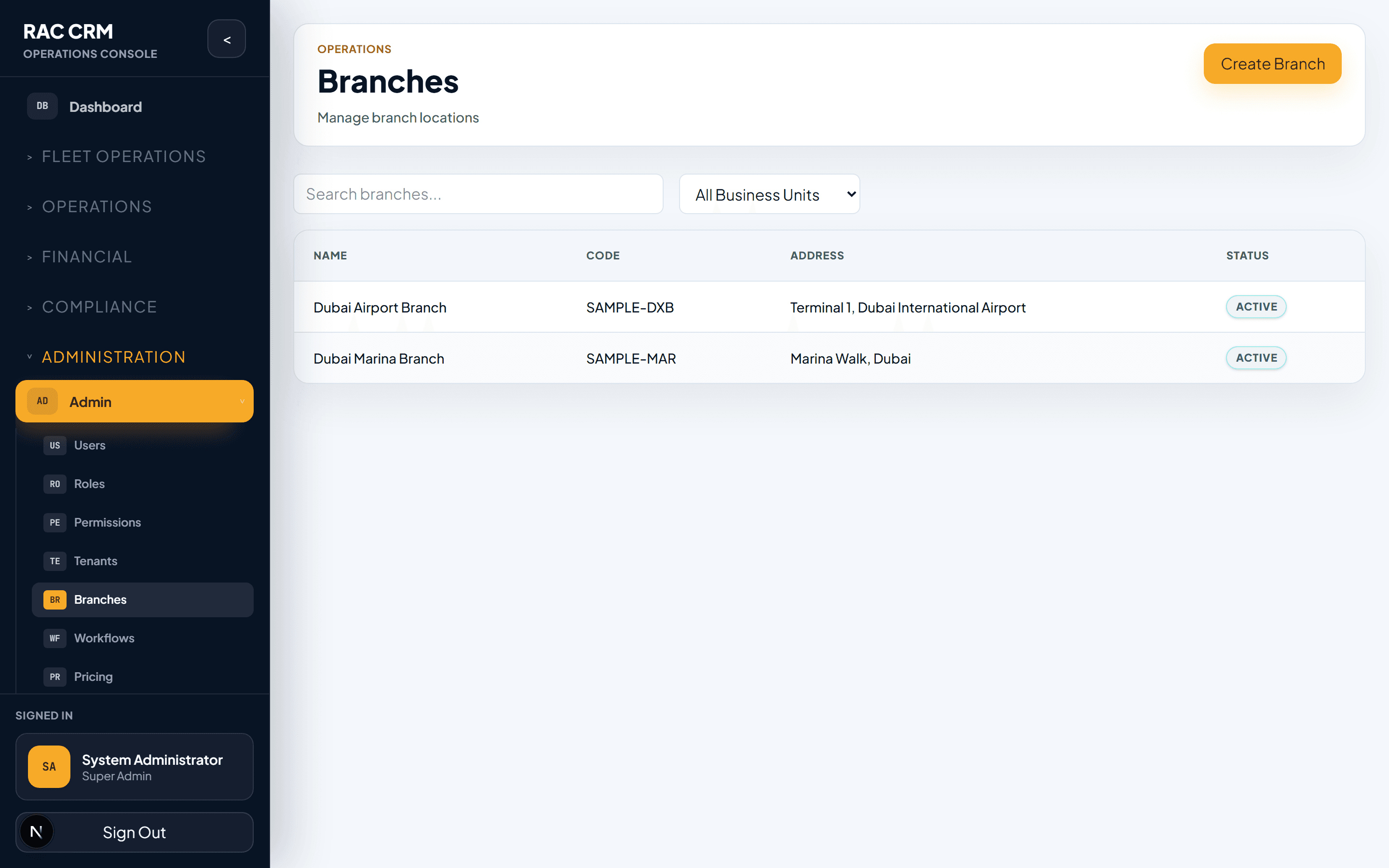
Branch List
| Column | Description |
|---|---|
| Branch Name | Location name |
| Code | Short code (e.g., "DXB-MAR") |
| Business Unit | Parent business unit |
| Address | Full address |
| Manager | Branch manager |
| Phone | Branch phone number |
| Status | Active, Inactive |
Creating a New Branch
Navigate to Admin → Branches → New Branch — The branch creation form opens.
Select business unit — Choose the parent business unit.
Enter branch details — Name, code, address, phone, email.
Assign branch manager — Select an existing user with Branch Manager role.
Configure branch settings — Operating hours, vehicle pickup/return location, document templates.
Save — The branch is created and available for user and vehicle assignment.
User Access Assignment
Users are granted access at three levels: tenant, business unit, and branch. All three levels work together to define what data a user can see and operate on.
Access Assignment Matrix
| Access Level | Granted Via | What It Controls |
|---|---|---|
| Tenant Access | Admin → Users → Tenant Access | Which company's data the user can access |
| Business Unit Access | Admin → Users → BU Access | Which divisions within the tenant |
| Branch Access | Admin → Users → Branch Access | Which physical locations |
How Access Levels Combine
| Tenant Access | BU Access | Branch Access | Result |
|---|---|---|---|
| Tenant A | All BUs | All Branches | Full access to Tenant A |
| Tenant A | BU: Dubai | All Branches in Dubai BU | Access to Dubai branches only |
| Tenant A | BU: Dubai | Branch: DXB-Marina | Access to Marina branch only |
| Tenant A | All BUs | Branch: DXB-Marina | Access to Marina across all BUs |
| Tenant A + B | All BUs | All Branches | Access to both tenants |
A user must have tenant access before business unit or branch access is meaningful. Granting branch access without tenant access has no effect.
Step-by-Step: Assign User Access
Open the user — Navigate to Admin → Users and open the user record.
Open the Tenant Access tab — Click "Grant Access" and select the tenant.
Open the Business Unit Access tab — Click "Grant Access" and select the business units.
Open the Branch Access tab — Click "Grant Access" and select the branches.
Verify — The user's effective access is shown in the summary panel.
Required Permissions
| Action | Permission |
|---|---|
| View tenant list | admin:manage_tenants |
| Create tenant | admin:manage_tenants |
| Edit tenant settings | admin:manage_tenants |
| View branches | admin:manage_branches |
| Create branch | admin:manage_branches |
| Edit branch | admin:manage_branches |
| Assign user tenant access | admin:manage_users |
| Assign user branch access | admin:manage_users |
Related Pages
- User Management — How to create and manage users
- Roles & Permissions — Permission system
- Pricing Engine — Branch-specific pricing configuration
Roles & Permissions
Manage the role catalog, assign permissions using the module:action format, and understand how permissions control access throughout the system.
Pricing Engine
Configure the 5-level pricing hierarchy, manage rate plans, simulate pricing, set branch-specific rates, and control discount approvals.