Invoicing & Billing
Create invoices, record payments, manage security deposits, issue credit notes, and process refunds across the rental lifecycle.
Invoicing & Billing
The Invoicing & Billing module is the financial backbone of your Rent a Car operation. It handles everything from generating invoices at contract checkout to tracking payments, managing security deposits, issuing credit notes, and processing refunds.
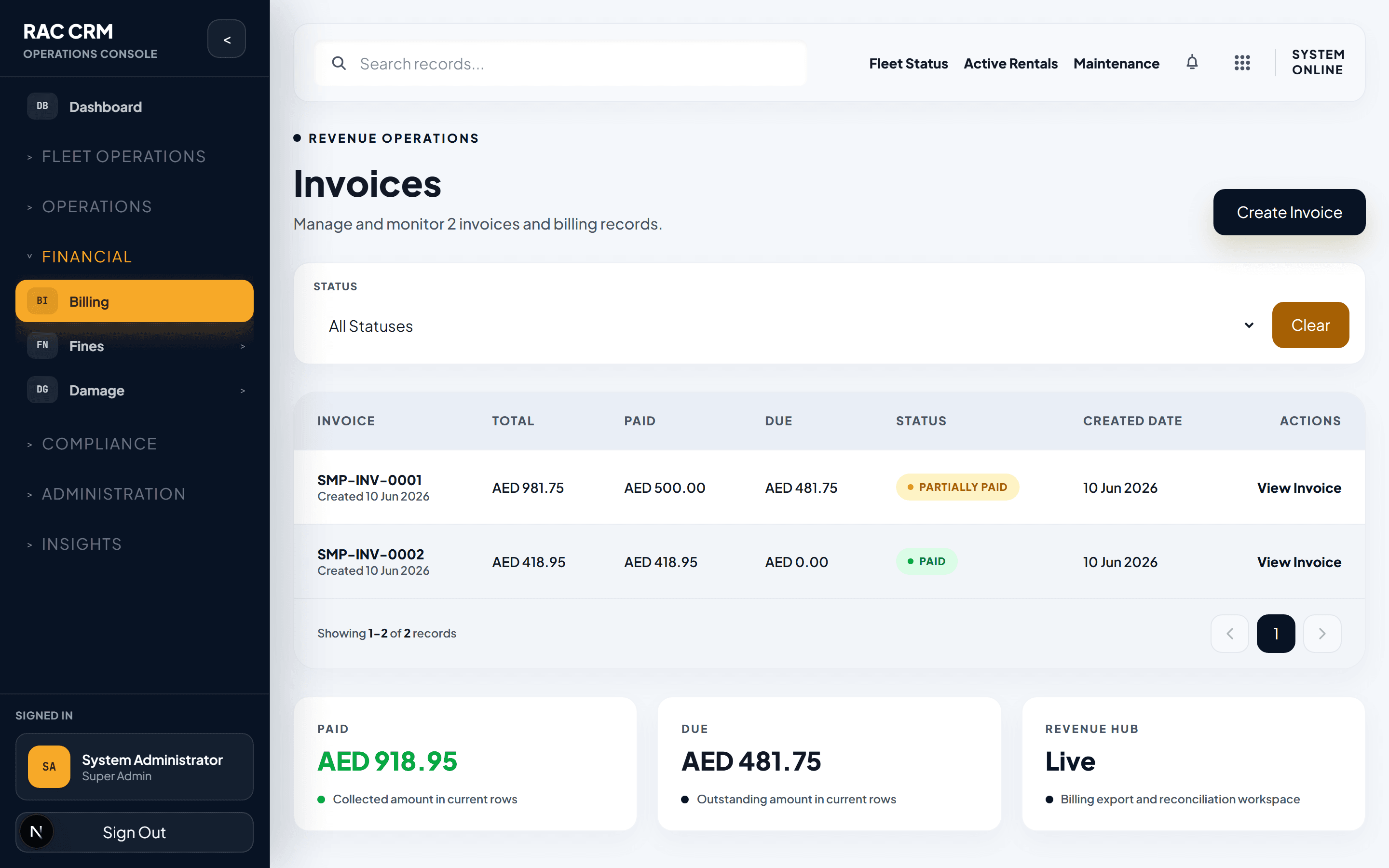
Invoice Lifecycle
Every invoice in the system follows a controlled status lifecycle. No invoice can skip a status — all transitions are logged and auditable.
| Status | Meaning | Who Sets It | Next Possible Statuses |
|---|---|---|---|
| Draft | Invoice created but not yet finalized | System (auto at checkout) or manual | Issued, Cancelled |
| Issued | Invoice sent to customer, awaiting payment | Billing clerk or auto on contract checkout | Partially Paid, Paid, Overdue, Cancelled |
| Partially Paid | At least one payment recorded, balance remaining | Payment recording | Paid, Overdue |
| Paid | Full balance settled | Payment recording | Refunded (if refund approved) |
| Overdue | Payment not received by due date | System (auto on due date) | Paid, Cancelled |
| Cancelled | Invoice voided before or after issuance | Manager with billing:cancel_invoice | Terminal status |
| Refunded | Full or partial refund processed and approved | Finance team with billing:approve_refund | Terminal status |
An invoice tied to an active contract cannot be cancelled without first resolving the contract. The system enforces this dependency automatically.
Creating an Invoice
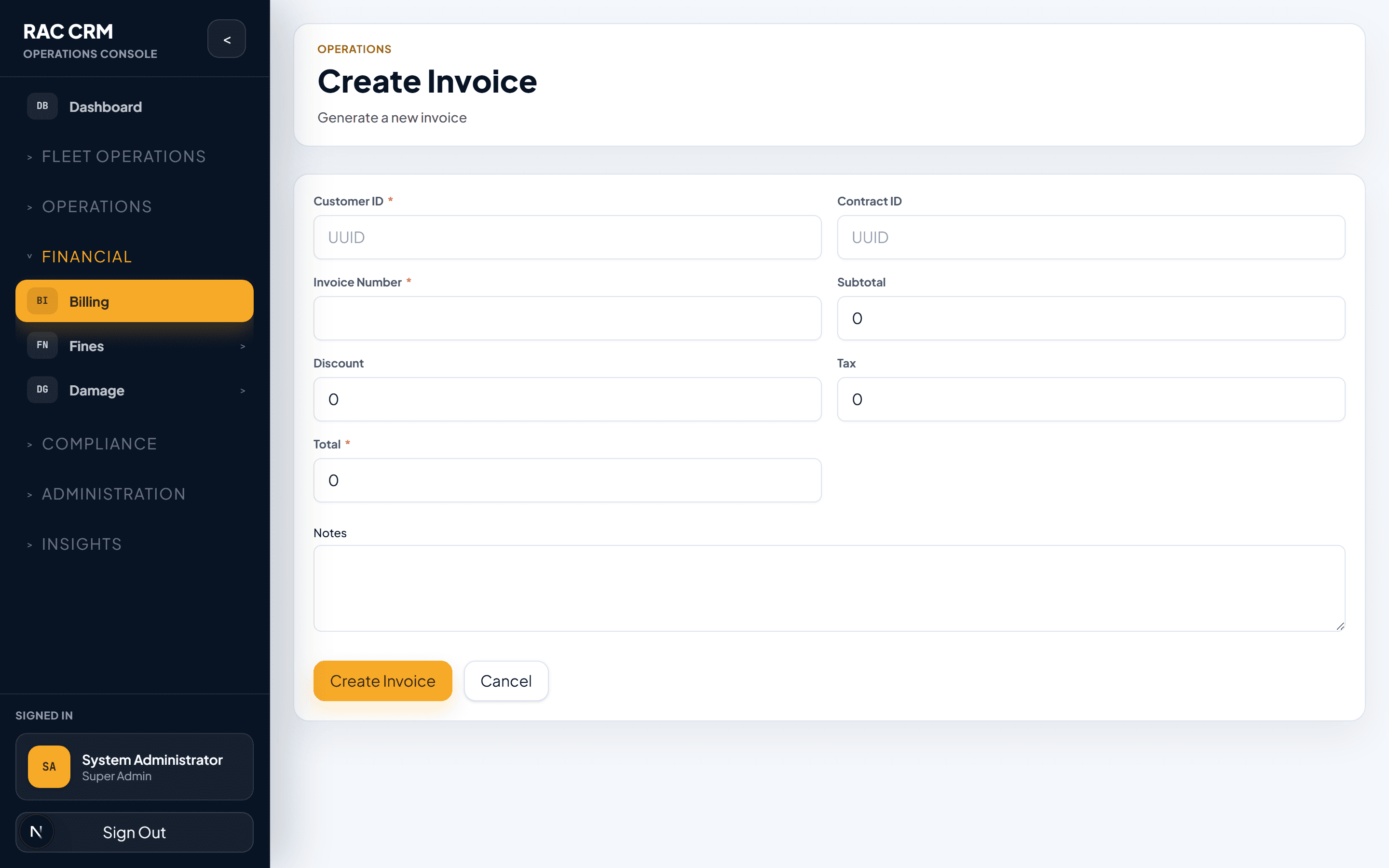
Invoices are created in two ways:
- Automatic creation — When a rental contract reaches checkout, the billing engine automatically generates a draft invoice with all applicable line items.
- Manual creation — A billing clerk can create an ad-hoc invoice from the Invoices screen for ancillary charges.
Invoice Line Items
Each invoice contains one or more line items. The following table shows common line item types:
| Line Item Type | Description | Example |
|---|---|---|
rental_charge | Base rental rate × number of rental days | 5 days × AED 150/day = AED 750 |
extra_driver_fee | Additional driver surcharge | AED 50 flat |
insurance_waiver | Collision damage waiver | AED 30/day |
gps_rental | GPS device rental | AED 20/day |
child_seat | Child booster seat | AED 15/day |
mileage_excess | Excess mileage beyond allowance | AED 0.50/km × 120 km = AED 60 |
fuel_charge | Fuel top-up charge | AED 75 flat |
traffic_fine | Traffic fines passed through | AED 200 |
salik_charge | Salik toll charges | AED 24 (8 crossings × AED 3) |
damage_charge | Post-return damage assessment | AED 450 |
extension_charge | Contract extension fees | AED 150/day × 2 days |
late_return_fee | Penalty for late vehicle return | AED 100/day |
All line items include the applicable VAT amount. The system calculates tax automatically based on tenant-level tax configuration. Never manually edit tax amounts.
Payment Recording
When a customer makes a payment — whether cash, card, bank transfer, or online gateway — the billing clerk records it against the invoice.
Open the invoice — Navigate to the invoice detail page from the Invoices list.
Click "Record Payment" — A payment form opens with the outstanding balance pre-filled.
Select payment method — Choose from Cash, Credit Card, Debit Card, Bank Transfer, Online Payment, or Corporate Account.
Enter payment details — Reference number, amount, date, and any gateway transaction ID.
Confirm — The system updates the invoice status and creates an accounting event.
Payment Methods Reference
| Method | Reference Required | Gateway Integration | Notes |
|---|---|---|---|
| Cash | Receipt number | No | Branch cashier confirmation |
| Credit Card | Terminal ID + auth code | Yes (auto-verified) | Supports partial captures |
| Debit Card | Terminal ID | Yes | |
| Bank Transfer | Transfer reference | No (manual confirmation) | 1–3 day settlement |
| Online Payment | Transaction ID | Yes (auto-verified) | Stripe, Tap, etc. |
| Corporate Account | PO number or account code | No | Billed to corporate monthly |
Security Deposits
Security deposits are collected at contract checkout and held until the vehicle is returned and all charges are settled.
Deposit Lifecycle
| Status | Meaning | Trigger |
|---|---|---|
| Pending | Deposit authorized but not yet captured | Contract checkout (card hold) |
| Collected | Funds captured from customer | Checkout confirmation |
| Held | Deposit held during active rental | Auto on collection |
| Released | Deposit returned to customer | Vehicle returned, no charges |
| Forfeited | Deposit kept due to damage or charges | Damage review or fine charges |
| Disputed | Customer disputes the forfeiture | Customer complaint filed |
Step-by-Step: Deposit Release
Return the vehicle — The contract transitions to return_pending.
Complete return inspection — Document any new damage via the inspection form.
Review outstanding charges — Check for fines, Salik, damage, fuel, or mileage excess.
Decision point — If no charges, release the full deposit. If charges exist, deduct and release the remainder.
Confirm release — The system creates a refund accounting event and initiates the card refund.
Partial deposit releases are supported. For example, if AED 500 is held and AED 200 in damage charges are approved, AED 300 is released and AED 200 is forfeited.
Credit Notes
Credit notes are first-class financial documents used to correct or reduce invoice balances. Never edit a posted invoice directly — always issue a credit note.
When to Use a Credit Note
- Customer overpaid on an invoice
- A charge was applied in error
- A discount or goodwill adjustment is approved
- A dispute is resolved in the customer's favor
Credit Note Lifecycle
| Status | Who Can Set | Description |
|---|---|---|
| Draft | Billing clerk | Credit note created, not yet submitted |
| Pending Approval | Billing clerk (submits) | Awaiting manager approval |
| Approved | Finance manager | Approved for issuance |
| Issued | System (auto on approval) | Applied to customer balance |
| Included in Posting Batch | Accounting system | Included in next journal export |
Credit notes above AED 1,000 require approval from a senior finance manager. The system enforces this threshold automatically based on your tenant configuration.
Refunds
Refunds return money to the customer. They can originate from overpayments, approved credit notes, or deposit releases.
Refund Process
Refund request created — Via billing screen or deposit release.
Approval check — Refunds above the configured threshold require manager approval.
Payment processing — Refund is processed via the original payment method when possible.
Accounting event generated — refund_approved and refund_paid events are created.
Status updated — The related invoice moves to Refunded status.
Common Tasks
| Task | Where | Permission Required |
|---|---|---|
| View all invoices | Finance → Invoices | billing:read |
| Create manual invoice | Finance → Invoices → New Invoice | billing:create_invoice |
| Record a payment | Invoice detail → Record Payment | billing:record_payment |
| Issue credit note | Finance → Credit Notes → New | credit_note:create |
| Approve credit note | Credit note detail → Approve | credit_note:approve |
| Release deposit | Contract return → Release Deposit | deposit:release |
| Forfeit deposit | Contract return → Forfeit Deposit | deposit:forfeit |
| Process refund | Refund detail → Process Refund | billing:approve_refund |
Related Pages
- Accounting Subledger — How invoices flow into accounting entries
- Traffic Fines & Salik — How fines become invoice line items
- Damage Charges — How damage assessments become charges
Customer Self-Service Portal
How customers register, search, book, manage reservations, and access invoices through the self-service portal.
Accounting Subledger
Understand the RAC accounting subledger, including events, balanced entries, COA mappings, summary journal posting, subledgers, reconciliation, credit notes, and payment allocations.